By Samir Haddad Fact-checked by Hugo Lindgren Published
The Raspberry Pi 4 Model B launched at $35 in June 2019. In November 2026 that price buys only the 1GB board, and the 8GB lists at $165 after four rounds of price rises driven by memory costs. This guide covers what the Pi 4 is, which RAM size suits which project, what a full setup costs today, and when you should buy a Raspberry Pi 5 instead.
Key takeaways
- Current US list prices are $35 (1GB), $67.50 (2GB), $83.75 (3GB), $100 (4GB) and $165 (8GB).
- At 1GB, 2GB and 4GB the Raspberry Pi 5 costs only $10 more, so the Pi 4 now wins on power, heat and accessories, not on board price.
- 4GB is the right size for most buyers. 1GB or 2GB is enough for headless servers like Pi-hole.
- Use a real 5V/3A USB-C supply and boot from a USB 3 SSD for anything that writes a lot of data.
- Raspberry Pi Ltd has committed to making the Pi 4 until at least January 2034.
Fact-checked
We checked these key facts against the sources named, on November 11, 2026:
- The Raspberry Pi 4 Model B launched at $35 in June 2019 (source: techcrunch.com)
- Raspberry Pi added the 3GB Pi 4 on April 1, 2026, at $83.75 (source: liliputing.com)
- The 2GB price went up most recently, by $12.50 on October 1, 2026 (source: raspberrypi.com)
- The December 1, 2025 round added $5 to the 4GB and $10 to the 8GB (source: gamingonlinux.com)
- After an increase of $12.50 on October 1, 2026, it now lists at $67.50 (source: theregister.com)
Raspberry Pi 4 in 2026: the short answer
Buy a Pi 4 if you’re running a headless server, a GPIO or robotics project, a 3D printer host or a retro console, or if you already own Pi 4 power supplies, cases and HATs. Buy a Raspberry Pi 5 if you want a desktop, NVMe storage or heavy compute. Pi 4 boards cost $35 to $165 and will be made until at least 2034.
That’s the whole decision for most people. The rest of this guide explains the reasoning, the real costs and the setup problems that store pages leave out.
Raspberry Pi 4 specs, explained in plain English
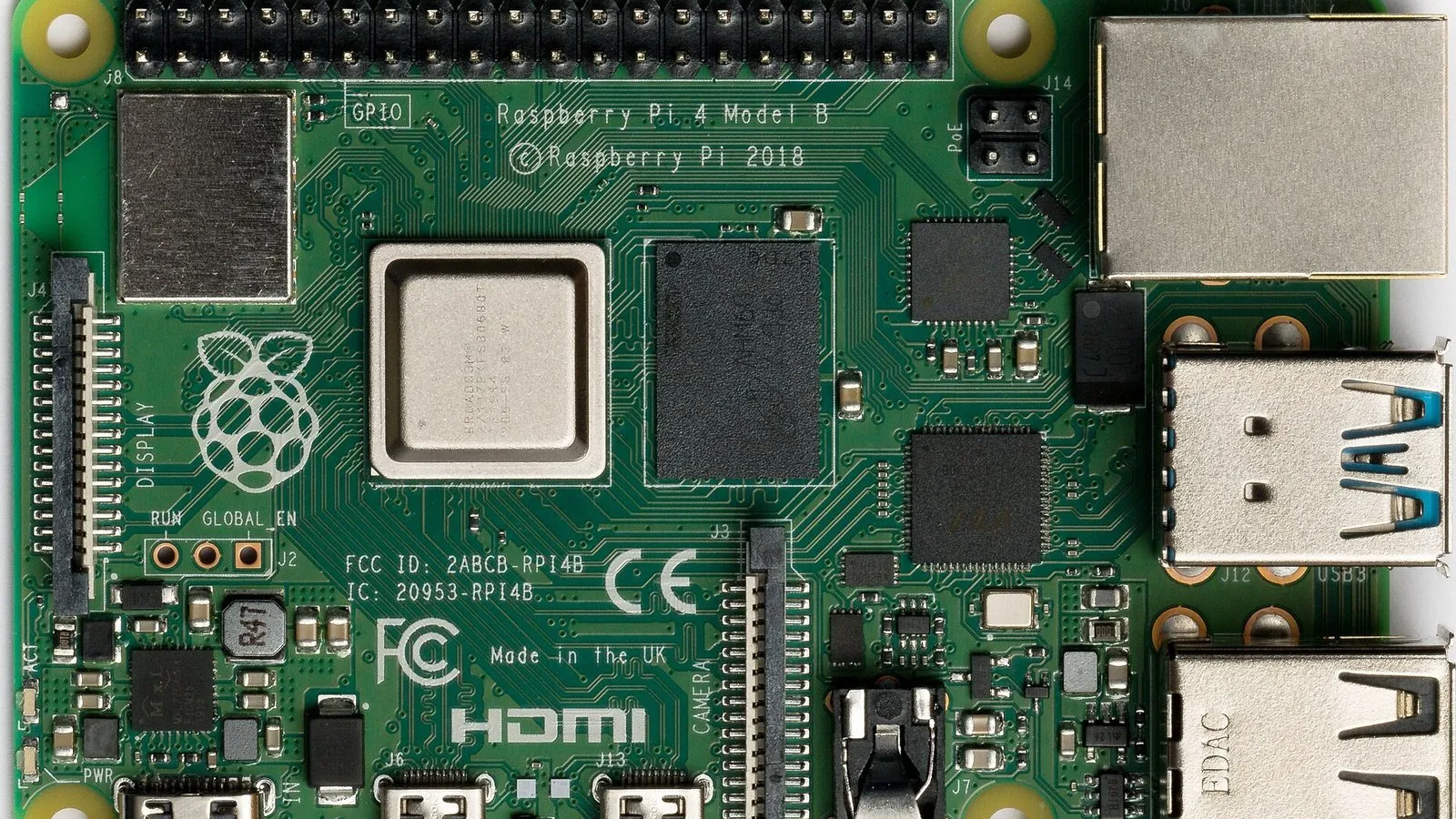
The Pi 4 Model B is a credit-card-sized computer, 85 × 56 mm. It’s built around the Broadcom BCM2711, which has four ARM Cortex-A72 cores at 1.8GHz, and it takes 1GB to 8GB of LPDDR4-3200 memory. Raspberry Pi Ltd makes it. That’s the commercial company run by CEO Eben Upton, separate from the Raspberry Pi Foundation, the educational charity. The Compute Module 4 and the Raspberry Pi 400 keyboard computer use the same chip.
| Component | Raspberry Pi 4 spec | What it means for your project |
|---|---|---|
| Processor | Broadcom BCM2711, quad-core Cortex-A72 (ARM v8) 64-bit, 1.8GHz | Fast enough for servers, emulation up to around PS1 level, and light desktop use |
| Memory | 1GB, 2GB, 3GB, 4GB or 8GB LPDDR4-3200 | RAM is soldered on. Choose carefully because you can’t upgrade it later |
| GPU | VideoCore VI, OpenGL ES 3.1, Vulkan 1.0 at launch (Vulkan 1.3 via current Mesa) | Smooth desktop, kiosk dashboards and emulator front ends |
| Video decode | H.265 (HEVC) 4Kp60, H.264 1080p60 decode, 1080p30 encode | Direct-play media centres, but weak transcoding |
| Display out | 2 × micro-HDMI, up to 4Kp60 | Dual monitors, but you need micro-HDMI cables or adapters |
| Wireless | 2.4/5.0GHz 802.11ac Wi-Fi, Bluetooth 5.0, BLE | Wi-Fi 5 and modern Bluetooth controllers and sensors |
| Wired network | Gigabit Ethernet, PoE capable (needs a PoE HAT) | Close to 1Gbps for a NAS or Pi-hole |
| USB | 2 × USB 3.0 (blue), 2 × USB 2.0 | Use the blue ports for SSDs and fast drives |
| Camera/display | 2-lane MIPI CSI camera, 2-lane MIPI DSI display | Raspberry Pi Camera Modules and the official touch displays |
| GPIO | 40-pin header, 3.3V logic | Sensors, HATs, motor drivers and serial links to microcontrollers |
| Audio/video jack | 4-pole 3.5mm stereo audio and composite video | Analog speakers, or old CRT TVs for retro builds |
| Storage | microSD slot, plus USB boot | Boot from SD or from a USB SSD |
| Power | 5V DC via USB-C, 3A recommended (or 5V via GPIO, or PoE) | Needs a proper USB-C supply, not a phone charger |
| Operating range | 0–50°C ambient | Not for hot attics or sealed outdoor boxes without careful planning |
CPU, GPU and RAM
The Cortex-A72 cores give the Pi 4 a large jump over the Pi 3’s Cortex-A53, and 64-bit Raspberry Pi OS uses them fully. Boards from the 2019 and 2020 launch period ran at 1.5GHz. The current product page lists 1.8GHz, which newer board revisions run by default. This matters if you buy used, because an early board is slightly slower out of the box.
The VideoCore VI GPU shipped with Vulkan 1.0 support. Since then the open-source Mesa V3D driver has improved a lot. A FOSDEM 2026 talk on the move from Bookworm to Trixie described Vulkan 1.3 support on the Pi 4 and Pi 5 and large performance gains. A 2019 board therefore runs better graphics software today than it did at launch.
Ports and connectors
From the USB-C power edge, the ports run in this order: USB-C power, micro-HDMI 0, micro-HDMI 1, then the 3.5mm audio/composite jack. On the opposite short edge you’ll find the Gigabit Ethernet jack, two blue USB 3.0 ports and two black USB 2.0 ports. The 40-pin general purpose input output header runs along one long edge. The CSI camera connector sits between the HDMI ports and the audio jack, and the DSI display connector is next to the microSD slot end.
The micro-HDMI ports are the detail that catches most beginners. They aren’t mini-HDMI and they aren’t full-size. A standard HDMI cable won’t fit without a micro-HDMI to HDMI cable or adapter. Raspberry Pi used micro-HDMI so it could fit two 4K outputs on a board this size.
The four USB ports share one PCI Express Gen 2 lane through a VIA Labs (VLI) USB controller. That gives about 4Gbps across all four ports. One USB 3 SSD gets close to its full speed. Two fast drives copying at the same time will share that bandwidth.
PoE needs extra hardware. The board has the PoE header pins, but you need a Raspberry Pi PoE+ HAT (or a compatible one) and a PoE switch or injector to power it over Ethernet.
Did you know?
According to Raspberry Pi’s 2019 launch announcement, all four USB ports on the Pi 4 share a single PCI Express Gen 2 lane, about 4Gbps in total, through an external VLI controller.
Power: why 5V/3A USB-C, and the 2.5A exception
The Pi 4 needs 5V at 3A through its USB-C port. The official Raspberry Pi 15W USB-C Power Supply outputs 5.1V, so voltage stays above the brownout threshold when the board is busy. The product page has one exception: a good 2.5A supply is acceptable if your USB devices draw less than 500mA in total.
The Pi 4 can supply about 1.2A in total to its USB ports. That’s enough for a keyboard, a mouse and one efficient SSD. It isn’t enough for a 2.5-inch hard drive spinning up at the same time as a webcam.
Power check
Stick to 5V at 3A on the USB-C port. Never feed more than 5V into the GPIO 5V pins, and never connect 5V logic directly to a GPIO input. The GPIO pins are 3.3V only.
Which RAM size to buy: 1GB, 2GB, 3GB, 4GB or 8GB
Get 4GB unless you have a reason to go up or down. Headless servers and GPIO projects run well on 1GB or 2GB. The new 3GB model suits people who need more than 2GB and want to save money. The 8GB is only worth it for desktop use, Docker stacks or several containers at once.
| Project | Minimum RAM | Recommended RAM | Extra hardware needed |
|---|---|---|---|
| Pi-hole DNS ad blocker | 1GB | 1GB or 2GB | Ethernet cable |
| Klipper 3D printer host | 1GB | 2GB | USB cable to printer board, optional camera |
| Robot brain with Arduino or ESP32 | 1GB | 2GB | Microcontroller, motor driver, separate motor battery |
| Camera or motion detection | 2GB | 2GB or 4GB | Raspberry Pi Camera Module, ribbon cable |
| Home Assistant OS | 2GB | 4GB | USB 3 SSD, optional Zigbee/Thread USB stick |
| RetroPie emulation | 1GB | 2GB or 4GB | Controller, heatsink case with fan |
| Kiosk or dashboard | 2GB | 2GB or 3GB | Display, micro-HDMI cable |
| NAS with Samba or OpenMediaVault | 2GB | 4GB | Powered USB hub or self-powered drives |
| Jellyfin or Plex (direct play) | 2GB | 4GB | USB 3 storage |
| Docker with several containers | 4GB | 8GB | USB 3 SSD, active cooling |
| Dual-screen desktop | 4GB | 8GB | Two micro-HDMI cables, keyboard, mouse, SSD |
1GB and 2GB: headless servers and GPIO projects
You don’t need much memory for a board with no monitor running one or two services. Pi-hole uses a small share of 1GB. A Python script reading sensors and switching relays needs far less than that. The 1GB board kept its $35 price through every 2025–2026 increase, so it’s now the best-value Pi 4 by a wide margin.
The 2GB, now $67.50, gives you room for a second service, a small database or a lightweight web dashboard. Don’t buy it for desktop browsing. A few Chromium tabs on 2GB will push the system into swap.
3GB: the new 2026 middle option
Raspberry Pi added the 3GB Pi 4 on April 1, 2026, at $83.75. That’s about 15% less than the 4GB after the April increase. Raspberry Pi explained the reason in its announcement: the LPDDR4 memory on the Pi 4 and Pi 5 had risen about seven-fold in price in a year, so a smaller memory option saved buyers real money.
The 3GB model suits jobs that are tight on 2GB but don’t need 4GB. Examples include a kiosk running one browser window, Home Assistant with a modest set of add-ons, or a Docker host with two or three light containers. It doesn’t suit desktop use or memory-hungry Home Assistant add-ons. One more catch: at $83.75 it costs more than a 2GB Raspberry Pi 5 at $77.50. If raw speed matters more to you than memory, that Pi 5 is worth a look.
Did you know?
Raspberry Pi said the LPDDR4 DRAM used on the Pi 4 and Pi 5 rose about seven-fold in price within a year. That’s why it launched a 3GB Raspberry Pi 4 in April 2026, nearly seven years after the board first went on sale.
4GB: the sweet spot for Home Assistant, emulation and light desktop use
The 4GB model gives most projects room to grow without paying for memory they’ll never use. Home Assistant OS runs comfortably with a few add-ons such as Mosquitto MQTT, Zigbee2MQTT and ESPHome. RetroPie doesn’t need 4GB, but the headroom helps if the same board also runs Kodi. A light Raspberry Pi OS desktop with a browser and an IDE works on 4GB.
To answer a common question directly: yes, 4GB is enough for Home Assistant and retro gaming. Storage and cooling limit those builds long before memory does.
8GB: desktop, Docker and multiple containers
The 8GB, at $165, only pays off when memory is the bottleneck. That means many browser tabs, several Docker containers (for example Home Assistant, Node-RED, InfluxDB and Grafana together), or a dual-monitor desktop. The extra memory doesn’t make the CPU or GPU faster. At $180, the 8GB Raspberry Pi 5 is only $15 more and is much faster. That makes the 8GB Pi 4 the hardest variant to recommend in 2026, unless you need exact compatibility with an existing 8GB Pi 4 setup.
How much does a Raspberry Pi 4 cost now? (and why it went up)
As of November 11, 2026, US list prices at Raspberry Pi Approved Resellers are $35 for 1GB, $67.50 for 2GB, $83.75 for 3GB, $100 for 4GB and $165 for 8GB. CanaKit, an Approved Reseller, lists the 4GB board alone at $100.00. The 2GB price went up most recently, by $12.50 on October 1, 2026. The November 2026 round only affected 16GB models, and the Pi 4 has no 16GB version.
Price history: 2019 to November 2026
| RAM | Launch price | Before Dec 2025 | Dec 2025 | Feb 2026 | Apr 2026 | Oct 2026 (current) |
|---|---|---|---|---|---|---|
| 1GB | $35 (Jun 2019) | $35 | $35 | $35 | $35 | $35 |
| 2GB | $45 (Jun 2019) | $45 | $45 | $55 | $55 | $67.50 |
| 3GB | $83.75 (Apr 2026) | – | – | – | $83.75 | $83.75 |
| 4GB | $55 (Jun 2019) | $55 | $60 | $75 | $100 | $100 |
| 8GB | $75 (May 2020) | $75 | $85 | $115 | $165 | $165 |
The pattern before 2025 was gentler. The 2GB dropped to $35 in early 2020, then returned to $45 in late 2021 during the chip shortage. The 1GB came back at $35 at the same time. The rises since December 2025 are much bigger. The December 1, 2025 round added $5 to the 4GB and $10 to the 8GB. February 2026 added $10, $15 and $30 to the 2GB, 4GB and 8GB tiers, as Phoronix reported. April 2026 added another $25 to 4GB boards and $50 to 8GB boards, according to CNX Software’s coverage of Raspberry Pi’s announcement.
The 4GB Pi 4 has gone from $55 to $100 in under a year, an 82% rise. The 8GB has more than doubled, from $75 to $165.
Did you know?
As The Register pointed out in October 2026, the 2GB Raspberry Pi 4 once sold for $35. After an increase of $12.50 on October 1, 2026, it now lists at $67.50.
Why prices went up: the DRAM shortage
The cause is memory, not the Broadcom chip or the board itself. AI data centres are buying huge amounts of DRAM, and older LPDDR4 has become scarce as manufacturers move production to newer memory. Raspberry Pi says LPDDR4 prices rose about seven-fold in a year. That explains why each increase scales with RAM size, and why the 1GB boards haven’t changed price.
Eben Upton has said publicly that the increases are temporary and will be reversed when memory prices fall. That’s a stated intention, not a date. Industry commentary quoted in November 2026 coverage suggests relief could be years away. Don’t hold off on a project you need now because you expect a quick drop.
Is the Raspberry Pi still an affordable SBC after these rises? At 1GB and 2GB, yes, compared with any x86 mini PC. At 8GB, much less so. A used mini PC can match an 8GB Pi 4 on price and beat it on speed. The Pi still wins on GPIO, power draw, size and software support.
Board only vs kit: what a complete setup really costs
A board on its own isn’t a working computer. Budget roughly $35 to $50 extra for a power supply, card, case and cable, and more for a keyboard, mouse and monitor if you don’t have them.
| Item | Typical US cost (2026) | Notes |
|---|---|---|
| Raspberry Pi 4 Model B 4GB | $100 | Board only, Approved Reseller list price |
| Raspberry Pi 15W USB-C Power Supply | about $8–$16 | Price varies a lot by retailer |
| 32GB A1 or A2 microSD card | about $8–$15 | Branded card from a known seller |
| Case with heatsink or fan | about $8–$20 | The official case plus fan, or an aluminium heatsink case |
| Micro-HDMI to HDMI cable | about $5–$10 | Only needed if you use a monitor |
| Approximate total (4GB) | about $130–$160 | Without keyboard, mouse or monitor |
Compare that with prebuilt kits. PiShop.us lists the official Raspberry Pi 4 Desktop Kit at $188.50 (2GB), $221.00 (4GB) and $286.00 (8GB). The kit includes the official keyboard and mouse, two micro-HDMI cables, the power supply, the case, a microSD card with Raspberry Pi OS installed, and the Beginner’s Guide. CanaKit’s Pi 4 starter kits sold for roughly $120 to $210 during 2026, depending on RAM and bundle.
Kits make sense if you have no peripherals at all and want everything to work the first time. If you already own a USB keyboard, mouse and some cables, building your own setup usually saves $40 to $60. Check any kit’s card listing: if it mentions NOOBS, the stock is old, because NOOBS was replaced by Raspberry Pi Imager years ago.
Maker tip
Buy from a Raspberry Pi Approved Reseller (CanaKit, PiShop.us, Adafruit, Micro Center and others in the US). Third-party Amazon sellers often charge well above list price for board-only listings, and resold or “renewed” units can be early 1.5GHz revisions.
Raspberry Pi 4 vs Raspberry Pi 5: which should you buy?
For a desktop, NVMe storage, heavy compute or a multi-camera build, buy the Raspberry Pi 5. For headless services, GPIO and robotics, existing accessories, analog audio, or low heat in a small enclosure, buy the Pi 4. With only $10 between the two boards at three tiers, the deciding factors are power, cooling and compatibility, not price.
| Feature | Raspberry Pi 4 | Raspberry Pi 5 |
|---|---|---|
| SoC | Broadcom BCM2711, 4 × Cortex-A72 at 1.8GHz | Broadcom BCM2712, 4 × Cortex-A76 at 2.4GHz |
| CPU performance | Baseline | About 2–3× faster |
| GPU | VideoCore VI | VideoCore VII |
| RAM options | 1, 2, 3, 4, 8GB | 1, 2, 4, 8, 16GB |
| US price, Nov 2026 | $35 / $67.50 / $83.75 / $100 / $165 | $45 / $77.50 / $110 / $180 / $385 |
| Recommended PSU | 5V/3A (15W) | 5V/5A (27W) for full USB current |
| Cooling | Heatsink fine for light loads, fan for sustained loads | Active Cooler strongly recommended |
| PCIe | Not exposed | Single-lane PCIe 2.0 for NVMe HATs |
| Camera/display | 1 × 2-lane CSI, 1 × 2-lane DSI | 2 × 4-lane MIPI (camera or display) |
| 3.5mm audio/composite jack | Yes | No |
| Hardware video decode | H.265 4Kp60, H.264 1080p60 | H.265 4Kp60 only |
| Extras | – | Power button, real-time clock, UART header, fan header |
| Production commitment | Until at least January 2034 | Current flagship board |
Where the Pi 5 wins
The Pi 5 is the better general-purpose computer. Its Cortex-A76 cores make web browsing, compiling and desktop apps feel responsive in a way the Pi 4 can’t match. The PCIe connector lets you add an NVMe SSD through an M.2 HAT, and that’s much faster than any USB drive on a Pi 4. Two 4-lane MIPI connectors allow stereo cameras or a camera plus a display. For a desktop, the Raspberry Pi 500+ keyboard computer is now the company’s flagship desktop, so the Pi 4 is no longer “your new desktop computer” in any meaningful sense.
Where the Pi 4 still wins
The Pi 4 runs cooler and draws less power under load. A 3A supply is enough, so the 15W supplies you already own still work. The Pi 5 wants a 27W, 5A Power Delivery supply. Its HAT and case ecosystem is the most mature of any Raspberry Pi, and every PoE HAT, case and DIN-rail mount from the last six years fits it. It also keeps the 3.5mm analog audio and composite video jack, which the Pi 5 dropped. That matters for retro builds on CRT televisions and for simple amplified speakers.
The value calculation also changes once you price the extras. A Pi 5 needs a 27W supply and an Active Cooler for sustained work, which adds about $15 to $25. That turns a $10 board gap into a $25 to $35 system gap. So is a Pi 4 still worth buying when the Pi 5 is only about $10 more? For a desktop, no. For a Pi-hole, a Klipper host or a robot, yes, and it’s even more clearly yes if you already own the power supply and case.
Should you keep a working Pi 4 instead of upgrading? If it does its job without throttling or crashing, keep it. A Pi 5 won’t make Pi-hole block ads faster or make Klipper print more accurately. Upgrade when the Pi 4 is clearly the bottleneck: a slow desktop, a long Docker restart, or an NVMe-sized storage need.
Verdict by project
These verdicts weigh four factors, roughly in this order: whether the Pi 4 does the job without being the bottleneck, total system cost including PSU and cooling, power and heat in the enclosure you’ll use, and accessory compatibility.
- Pi-hole, DNS, VPN endpoint: Pi 4 1GB. The cheapest board available that does the job.
- Klipper, OctoPrint-style hosts, CNC: Pi 4 2GB. Low heat suits printer enclosures.
- Robotics and GPIO control: Pi 4 1GB or 2GB. The 3A supply is easier to run from batteries through a 5V regulator.
- Home Assistant: Pi 4 4GB with an SSD, or Pi 5 4GB if you plan many add-ons or local voice processing.
- Retro gaming: Pi 4 for 8-bit to PS1 and CRT output. Pi 5 for heavier N64, Dreamcast and PSP titles.
- NAS: Either works. The Pi 5 with NVMe is faster, and the Pi 4 with USB 3 can still use most of Gigabit Ethernet.
- Desktop: Pi 5 or Raspberry Pi 500+.
- AI vision, local models: Pi 5.
Maker tip
Can you use your Pi 4 power supply on a Pi 5? Yes. The Pi 5 boots on a 5V/3A supply but limits total USB current to 600mA and shows a warning. That’s fine for headless jobs, but not for powering SSDs from its ports.
What the Raspberry Pi 4 is good for: 10 proven projects
The Pi 4 suits always-on, low-power jobs best: network services, home automation, printer and robot control, media playback and dashboards. These ten are the Raspberry Pi projects people build most with the board, along with the RAM and extra hardware each one needs.
- Pi-hole network ad blocker (1GB). Install Raspberry Pi OS Lite, give the Pi a fixed IP address, install Pi-hole and point your router’s DNS at it. A wired Ethernet connection is more reliable than Wi-Fi here.
- Home Assistant hub (4GB). Flash Home Assistant OS with Raspberry Pi Imager and boot it from a USB 3 SSD. Add a Zigbee or Thread USB stick on a short extension cable, plugged into a USB 2 port away from the USB 3 ports to reduce interference.
- RetroPie or emulation console (2GB to 4GB). The Pi 4 handles 8-bit and 16-bit systems and the original PlayStation well. Many N64 titles are playable with per-game tweaks. Use game backups you made from cartridges and discs you own.
- NAS with Samba or OpenMediaVault (4GB). Connect drives to the blue USB 3 ports through a powered hub. Gigabit Ethernet and USB 3 together let file copies get close to wire speed.
- Jellyfin or Plex media server (4GB). Set it up for direct play, where the client device decodes the video. The Pi 4 isn’t a good transcoding box. Store your library in a format your TVs and phones can play natively.
- Robot brain with an Arduino or ESP32 (1GB to 2GB). The Pi handles vision, networking and planning. A microcontroller drives the motors and servos and handles real-time timing. They talk over UART (see the wiring below).
- Camera, timelapse or motion detection (2GB). A Raspberry Pi Camera Module 3 on the CSI port works with the rpicam-apps tools in Raspberry Pi OS.
- Kiosk or wall dashboard (2GB to 3GB). Run Chromium in kiosk mode for a Home Assistant or Grafana dashboard. The official 7-inch touch display connects to the DSI port.
- Dual-screen desktop (4GB to 8GB). Both micro-HDMI ports drive 4K screens. It works well for documents, coding and learning Linux, but it’s slower than a Pi 5.
- Klipper 3D printer host (2GB). Install MainsailOS or Klipper with Fluidd, and connect the printer’s control board over USB. The Pi 4’s low heat helps inside a printer enclosure.
Robot brain wiring: Pi 4 to ESP32 over UART
Both boards use 3.3V logic, so you can connect them directly. For a 5V Arduino Uno, put a logic level shifter on the line from the Arduino’s TX to the Pi’s RX, or connect them over USB instead.
| From (Raspberry Pi 4) | To (ESP32 DevKit) | Wire purpose |
|---|---|---|
| GPIO14 / TXD (physical pin 8) | GPIO16 (UART2 RX) | Pi transmits commands |
| GPIO15 / RXD (physical pin 10) | GPIO17 (UART2 TX) | Pi receives sensor data |
| GND (physical pin 6) | GND | Common ground (required) |
Enable the hardware serial port with sudo raspi-config. Go to Interface Options, then Serial Port. Answer “No” to a login shell over serial and “Yes” to enabling the serial hardware, then reboot. Install pyserial with sudo apt install python3-serial.
\#!/usr/bin/env python3

import serial
import time with serial.Serial("/dev/serial0", 115200, timeout=1) as link:
    time.sleep(0.5)                  # let the port settle
    link.write(b"FWD 50\n")          # e.g. forward at 50% speed
    reply = link.readline().decode(errors="replace").strip()
    print("ESP32 says:", reply or "(no reply)")
Never power motors from the Pi’s 5V pin. Give the motor driver its own battery and connect only the grounds together.
What you need to get started (shopping checklist)
You need five things besides the board: a 5V/3A USB-C power supply, a microSD card of at least 16GB (32GB is the sensible minimum in practice), a case with some cooling, and a micro-HDMI cable plus a USB keyboard and mouse if you want a desktop. Headless builds can skip the screen, keyboard and mouse.
- Power supply. Use the official Raspberry Pi 15W USB-C Power Supply or a quality 5.1V/3A unit. Phone chargers often drop below 5V under load.
- microSD card. Get a branded A1 or A2-rated card, 32GB or larger, from a reputable seller. Cheap no-name or counterfeit cards are the top cause of corrupted installs.
- Case and cooling. At minimum use a case with a heatsink. Add a fan for sustained loads such as emulation, compiling or Home Assistant with many add-ons.
- Micro-HDMI to HDMI cable. It must be micro-HDMI (type D). Mini-HDMI (type C) cables from cameras won’t fit.
- Keyboard and mouse. Any standard USB or Bluetooth set works. The official Raspberry Pi keyboard has a built-in USB hub.
- Optional: a USB 3 SSD. A SATA SSD in a USB 3 enclosure, for long-running servers.
- Optional: Ethernet cable. Strongly recommended for Pi-hole, NAS and Home Assistant.
These are the mistakes that cost people the most time: a USB-C phone charger, a mini-HDMI cable bought by accident, a cheap SD card, and a microUSB-to-USB-C adapter with an old Pi 3 supply. That adapter combination often can’t deliver 3A, and it causes undervoltage from the first day.
Maker tip
For a single monitor, use the micro-HDMI port next to the USB-C power jack (HDMI0). Plugging into the other port is the most common reason a first boot shows nothing on screen.
Set up your Raspberry Pi 4 in 15 minutes
Flash Raspberry Pi OS (64-bit) to a microSD card with Raspberry Pi Imager, set your username, Wi-Fi and SSH in Imager’s customisation screen, insert the card and power on. The current Raspberry Pi OS is based on Debian 13 “Trixie”, released in October 2025, and its 64-bit build supports the Pi 3, Pi 4 and Pi 5.
Build steps
- Install Raspberry Pi Imager on your computer.
- Choose Raspberry Pi 4 as the device.
- Pick Raspberry Pi OS (64-bit), or Lite for headless use.
- Select your microSD card.
- Set hostname, user, Wi-Fi country, Wi-Fi and SSH.
- Write the card, insert it and connect power last.
Flash the card with Raspberry Pi Imager
Raspberry Pi Imager runs on Windows, macOS and Linux, and it’s available in Raspberry Pi OS itself. Choose your device first so Imager only lists compatible images. For a desktop, choose Raspberry Pi OS (64-bit). For servers, Pi-hole or robots, choose Raspberry Pi OS Lite (64-bit), which has no desktop and uses less memory.
Fill in the customisation screen carefully. Set a hostname such as pi4lab, a username and a strong password, your Wi-Fi network, and your Wi-Fi country. Skipping the country is a common reason 5GHz networks don’t appear. Turn on SSH with password or public-key authentication if you’ll run the board headless.
First boot and updates
Connect the micro-HDMI cable to HDMI0, plug in the keyboard, mouse and Ethernet if you’re using them, and connect the USB-C power last. The first boot takes a minute or two longer than later boots because the system expands the filesystem. On a headless build, connect from your computer with ssh [email protected].
Then bring everything up to date, including the bootloader EEPROM:
sudo apt update
sudo apt full-upgrade -y
sudo rpi-eeprom-update        # shows current vs latest bootloader
sudo rpi-eeprom-update -a     # applies an update if one is available
sudo reboot
Check the board model and revision with cat /proc/device-tree/model. A current board reports something like “Raspberry Pi 4 Model B Rev 1.4” or later. Rev 1.1 boards from 2019 had a USB-C design flaw that stopped some e-marked USB-C cables from powering them. If you buy a used Pi 4, use a simple non-e-marked cable or the official supply with it.
Boot from a USB 3 SSD instead of microSD
For Home Assistant, databases or anything else that writes all day, boot from a USB 3 SSD. It’s faster and lasts much longer than an SD card. Current Pi 4 bootloaders support USB boot. The default boot order tries the SD card first, then USB, so a board with no card inserted boots from the SSD.
- Flash Raspberry Pi OS (or Home Assistant OS) directly to the SSD with Raspberry Pi Imager, the same way you would a card.
- Make sure the bootloader is current, using the commands above.
- If you want USB tried first, run
sudo raspi-config, open Advanced Options, then Boot Order, and choose USB boot. - Shut down, remove the microSD card, connect the SSD to a blue USB 3 port and power on.
If the board won’t boot from USB, open Raspberry Pi Imager. Under Misc utility images, the Bootloader option for the Pi 4 family writes a small SD card image that sets USB boot for you.
Keep it cool and stable: cooling, power and storage
The Pi 4 throttles itself to protect the chip. Raspberry Pi’s documentation says the ARM cores slow down progressively once the core temperature passes 80°C, and the GPU throttles too at 85°C. Passive cooling is enough for light loads. Use a fan or a large heatsink case for anything that runs the CPU hard for minutes at a time.
Heatsink vs fan vs case
| Cooling option | Best for | Trade-off |
|---|---|---|
| Bare board, no heatsink | Very light, intermittent GPIO scripts | Throttles quickly under sustained load |
| Stick-on heatsinks | Pi-hole, sensors, Klipper | Modest gain only, and stuck inside a closed case |
| Official case with case fan | General use, emulation, Home Assistant | Small fan noise |
| Aluminium heatsink case (passive) | Silent servers and media players | Gets warm to the touch, can block Wi-Fi a little |
| Heatsink case with twin fans | Compiling, Docker, overclocking | Noise, and fan wear over years |
Read temperature and throttling with vcgencmd
Before you blame your code, check whether the Pi is throttling:
vcgencmd measure_temp       # e.g. temp=58.4'C
vcgencmd get_throttled      # throttled=0x0 means no problems ever recorded
The get_throttled value is a set of flags. 0x0 is healthy. 0x50000 means undervoltage and throttling have happened since boot. 0x50005 means both are happening now. Bit 0 and bit 16 are undervoltage (now and since boot), and bits 2 and 18 are throttling (now and since boot).
A reader question that comes up often: temperatures rose from 60°C to 78°C after moving to an external SSD. Is that normal? It’s plausible but not ideal. A faster drive lets the CPU do more work per second, and the USB controller runs warmer under sustained traffic. A sealed case keeps both hot. At 78°C you’re just below the 80°C throttling point, so add a fan or move to a heatsink case.
Maker tip
Power external SSDs and hard drives from a powered USB hub or their own adapter, not from the Pi alone. The Pi 4’s USB ports share a budget of about 1.2A, and a drive drawing a surge of current will pull the whole board into undervoltage.
Troubleshooting the most common Pi 4 problems
Most Pi 4 failures trace back to one of five causes: weak power, a bad SD card, the wrong HDMI port, an underpowered or incompatible USB drive, or Wi-Fi settings. Work through them in that order. As one community saying puts it, if a Pi keeps crashing or won’t boot, it’s either a bad SD card or a power problem.
Undervoltage warning (lightning bolt)
The lightning bolt icon, or “Undervoltage detected!” in dmesg, means the supply dipped below about 4.63V. Swap to the official 15W supply or a known 5.1V/3A unit and use the cable that came with it. Long, thin USB-C cables cause voltage drop of their own.
If you get undervoltage warnings even with the official power supply and an SSD connected, the SSD is drawing too much from the Pi’s USB budget. Move the drive to a powered USB hub. Run vcgencmd get_throttled again after a heavy workload to confirm the fix.
SD card corruption
Corruption almost always comes from three things: undervoltage, pulling the power without shutting down, and low-quality or fake cards. Shut down with sudo shutdown -h now before you unplug. Use branded A1/A2 cards from authorised sellers, and move write-heavy services to a USB SSD. Keep a backup image of any build you’d hate to rebuild.
No display output
Use HDMI0, next to the USB-C jack. Connect the monitor before you power on, and check that the cable is micro-HDMI and rated for the resolution you want. A green activity LED blinking in a regular pattern points to a boot problem, not a display problem.
USB SSD drops out under load
If your Pi 4 boots from a USB 3 SSD and works until you do something intensive, then drops out, the cause is usually power or the enclosure’s USB-to-SATA bridge chip. First add a powered hub. If drops continue, some bridge chips misbehave with the UAS protocol on the Pi. Find the enclosure’s ID with lsusb (for example 152d:0578). Then add usb-storage.quirks=152d:0578:u at the start of the single line in /boot/firmware/cmdline.txt and reboot. This makes the drive slightly slower but stable. An enclosure known to work with the Pi is a better long-term fix.
Wi-Fi problems
Set the correct Wi-Fi country in Imager or raspi-config. Without it, 5GHz channels can be blocked. USB 3 devices and their cables can interfere with 2.4GHz signals. Use 5GHz, move the drive and cable away from the board, or use Ethernet for servers. Metal cases also reduce range.
Running out of memory
If the system slows down and the disk activity light stays on, it’s swapping. Check with free -h. Close browser tabs, switch to Raspberry Pi OS Lite, or move services into fewer containers. If none of that helps, you need the next RAM tier, because memory is soldered to the board.
FAQ
What is the Raspberry Pi 4 good for?
It suits always-on, low-power jobs: Pi-hole, Home Assistant, NAS and media servers, Klipper 3D printer hosts, retro gaming up to around PS1 level, camera projects, dashboards and robot controllers. Its 40-pin GPIO header lets it control real hardware as well as run software.
What’s better, Raspberry Pi 4 or 5?
The Raspberry Pi 5 is about 2–3× faster and adds PCIe for NVMe drives, so it’s better for desktops and heavy workloads. The Pi 4 is better if you care most about low heat, a 3A power supply, the 3.5mm audio jack, or compatibility with accessories you already own.
Is Raspberry Pi still relevant in 2026?
Yes. Raspberry Pi OS Trixie fully supports the Pi 4, the Mesa graphics driver keeps improving, and production is committed until at least January 2034. Price rises have made higher-RAM models less of a bargain, but nothing else matches its software support and accessory range.
Why is the Raspberry Pi 4 so expensive?
The LPDDR4 memory it uses rose about seven-fold in price in a year, because AI data centre demand tightened DRAM supply. Raspberry Pi passed those costs on in December 2025, February 2026, April 2026 and October 2026. Eben Upton says the rises will be reversed when memory prices fall.
How much does a Raspberry Pi 4 cost in 2026?
As of November 2026, US list prices are $35 (1GB), $67.50 (2GB), $83.75 (3GB), $100 (4GB) and $165 (8GB) at Approved Resellers. A full working setup with power supply, card, case and cable adds roughly $35 to $50.
Which Raspberry Pi 4 RAM size should I buy: 2GB, 3GB, 4GB or 8GB?
Get 4GB for Home Assistant, emulation, a NAS or light desktop use. Get 1GB or 2GB for single-purpose headless servers and GPIO projects. Pick the 3GB for a kiosk or a small container host where 2GB is tight. Only get 8GB for desktop use or several Docker containers, and compare it with the 8GB Pi 5 first.
What is the Raspberry Pi 4 3GB?
It’s a Pi 4 Model B with 3GB of LPDDR4, launched on April 1, 2026 at $83.75. That’s about 15% below the 4GB price at the time. Raspberry Pi added it so buyers wouldn’t pay for memory they don’t need while DRAM is expensive. Apart from the memory, the hardware is the same as the other versions.
What power supply does a Raspberry Pi 4 need?
A 5V, 3A USB-C supply. The official Raspberry Pi 15W USB-C Power Supply, rated 5.1V, is the safe choice. A good 2.5A supply is acceptable only if your USB devices draw under 500mA in total. Phone chargers often cause undervoltage.
Does the Raspberry Pi 4 need a fan?
Not for light loads such as Pi-hole, sensors or Klipper, where a heatsink is enough. For sustained loads such as emulation, compiling, Docker or a closed case with an SSD, use a fan or a large heatsink case. That keeps it below the 80°C point where throttling begins.
Can a Raspberry Pi 4 replace a desktop PC?
For basic tasks it can: documents, email, coding, learning Linux and light web browsing on a 4GB or 8GB board booted from an SSD. It struggles with heavy websites, video editing and many browser tabs. For a Pi-based desktop, the Raspberry Pi 5 or Raspberry Pi 500+ is a much better choice.
Before you buy
Write down your project before you choose a RAM size. Check the project table above for the minimum RAM, buy at list price from an Approved Reseller, and use the money you save to get the parts that actually prevent problems: a real 3A supply, a quality card or SSD, and some airflow. If your project is on the Pi 5 side of the verdicts, the extra $10 is well spent. For everything else, a Raspberry Pi 4 still does the job reliably at a sensible price.
Notes on this article
- Fact-checked by Hugo Lindgren against the sources listed below before publication.
- Published
Fact-checking
- Researched from 8 sources, listed below.
- Every claim is checked by Hugo Lindgren; anything we cannot confirm is corrected, labelled or removed.
Sources (8)
- Raspberry Pi 4 Model B product page (raspberrypi.com)
- Raspberry Pi 4 on sale now from $35 (raspberrypi.com)
- A new 3GB Raspberry Pi 4 for $83.75, and more memory-driven price increases (raspberrypi.com)
- Once a $35 computer, the 2 GB Raspberry Pi 4 now costs $67.50 (theregister.com)
- Raspberry Pi 4 3GB launched for $83.75, further price increases announced (cnx-software.com)
- Raspberry Pi 2026 DRAM pricing (phoronix.com)
- Raspberry Pi confirms new pricing for popular single-board computers (notebookcheck.net)
- Raspberry Pi raises prices in response to RAM price increases (liliputing.com)