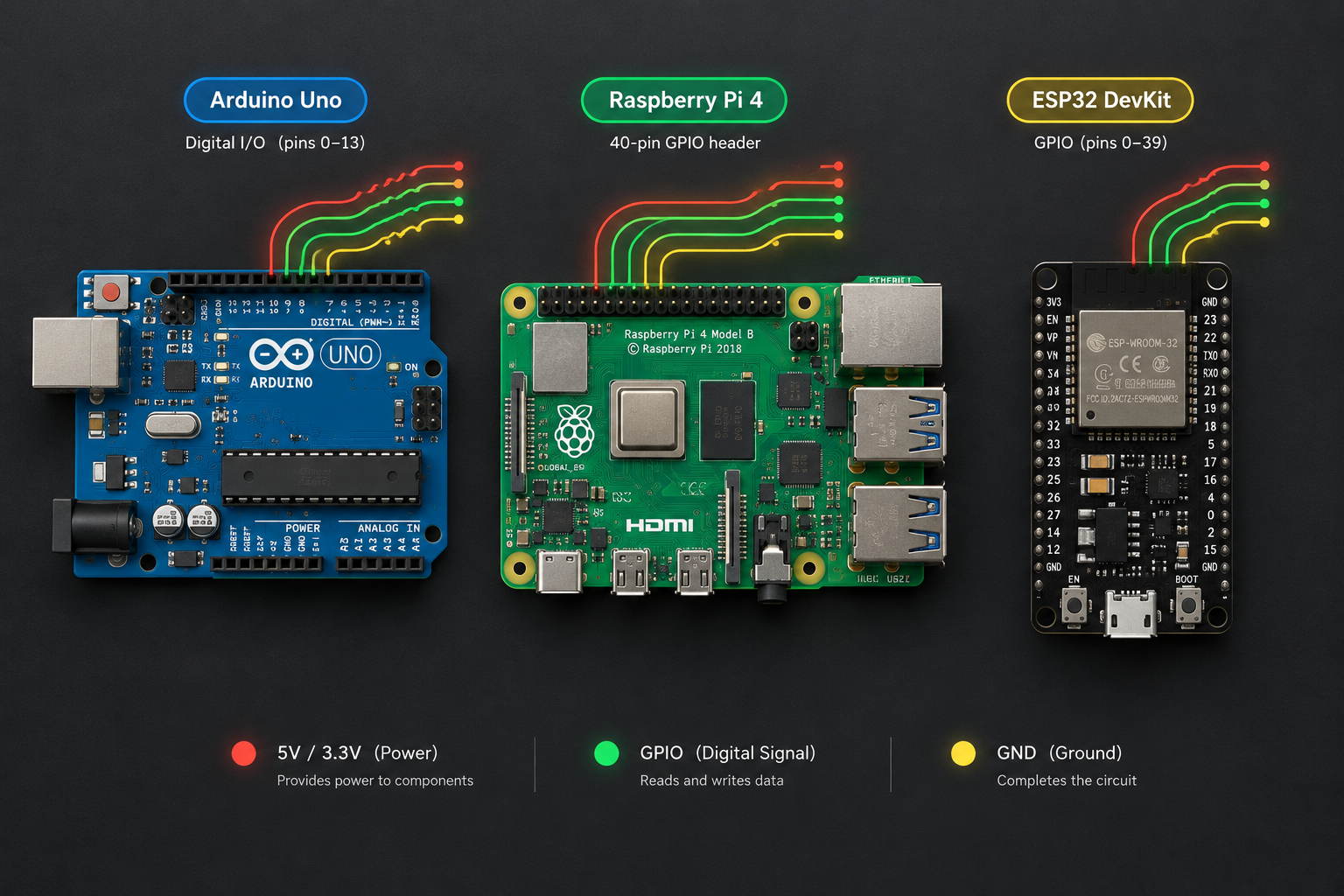
General purpose input output (GPIO) is a pin on a microcontroller or other integrated circuit that software can set as an input, to read a high or low voltage, or as an output, to drive a pin high or low. It has no fixed job, so the same physical pin can read a button, light an LED or trigger a relay. This article compares GPIO behaviour, voltage and current limits on the Arduino Uno, Raspberry Pi and ESP32, then walks through a working LED and button test on all three.
What general purpose input output actually means
Every chip has pins, and most of them are dedicated to one task: power, ground, a crystal, a USB data line. GPIO pins are different because their function is decided by firmware once the system is running. I find it helpful to think of each GPIO as a tiny switch controlled by a few bits in the chip’s registers. One bit sets direction (input or output), another sets the output level, and others enable pull resistors or route the pin to a peripheral such as PWM, I2C or UART.
That routing is why the documentation for most boards lists several names per pin. GPIO21 on an ESP32 is a plain digital pin by default, but the default Arduino core also uses it as the I2C data line. “IC I/O” is the broader term for any input or output pin on an integrated circuit. GPIO is the subset of those pins that you can reassign freely in software.
Why the “general purpose” part matters
Dedicated hardware is faster and more efficient, but it is inflexible. A general purpose input/output pin trades a little speed for the ability to support almost any simple digital task, which is why a $4 microcontroller can be a thermostat in one project and a robot’s bump sensor in the next. The tradeoff becomes visible when you try to bit-bang a fast protocol in software and find timing jitter that the dedicated peripheral would not have had.
Input and output modes in plain terms
Output: push-pull and open-drain
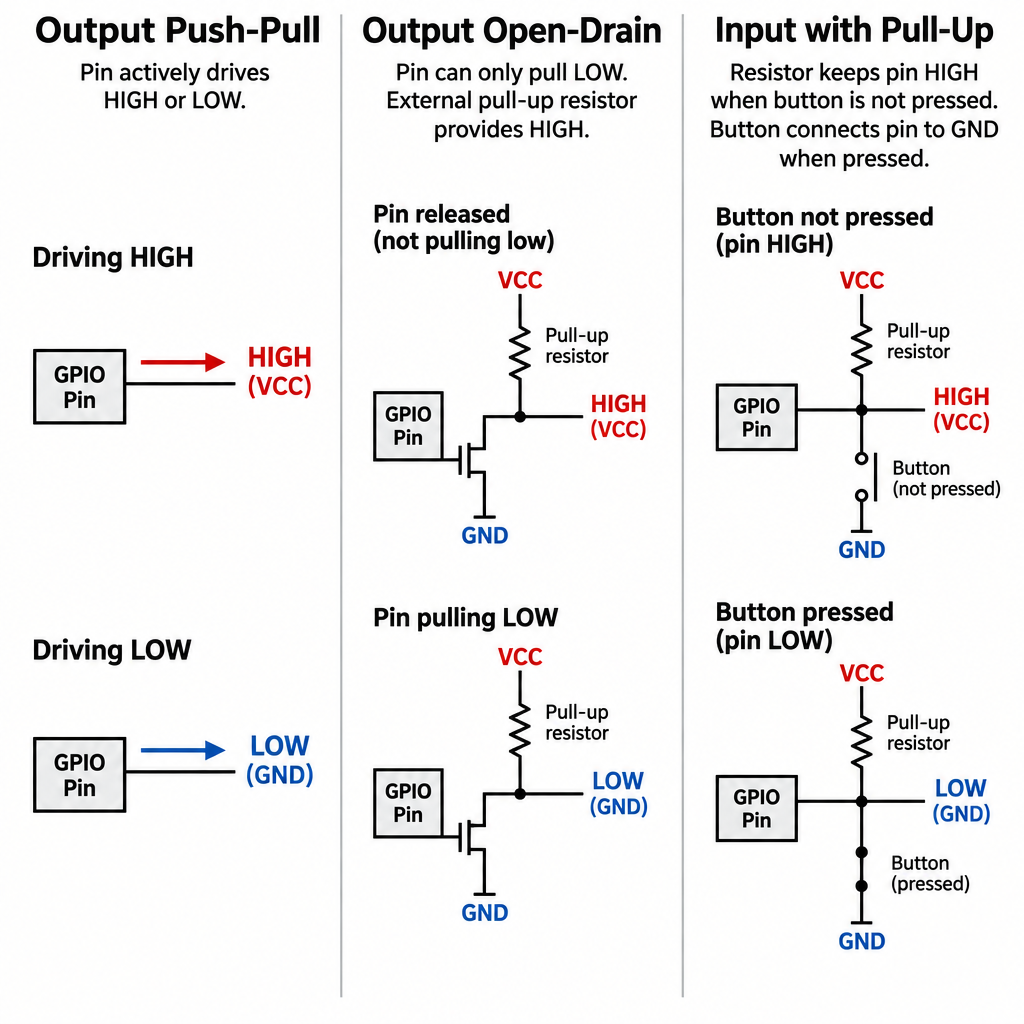
In the default push-pull output mode, the pin actively drives to the supply voltage for HIGH and actively pulls to ground for LOW. This is what digitalWrite() does on an Arduino. Open-drain (or open-collector) mode only pulls low; to get a HIGH, an external resistor pulls the line up. I2C uses open-drain so that several devices can share one wire without two of them fighting, one driving high while another drives low.
Input: high, low and the floating problem
As an input, a pin compares the voltage it sees against thresholds. On a 5 V ATmega328P, anything above about 3 V reads HIGH and anything below about 1.5 V reads LOW. On 3.3 V boards the thresholds scale down accordingly. The region in between is undefined, and an input connected to nothing at all will drift through it, picking up noise from your hand, mains wiring and nearby signals. This floating behavior is the single most common cause of “my button triggers by itself” posts.
Pull-up and pull-down resistors
A pull-up resistor ties the input weakly to the supply so it reads HIGH until a button connects it firmly to ground. A pull-down does the opposite. All three boards in this article include internal pull resistors that you enable in software, so a basic button needs no extra parts. I use the internal pull-up by default and wire buttons between the pin and GND, which means a press reads LOW. That inverted logic confuses people at first, but it is the convention in almost every Arduino example.
GPIO on Arduino, Raspberry Pi and ESP32 compared
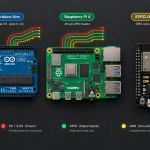
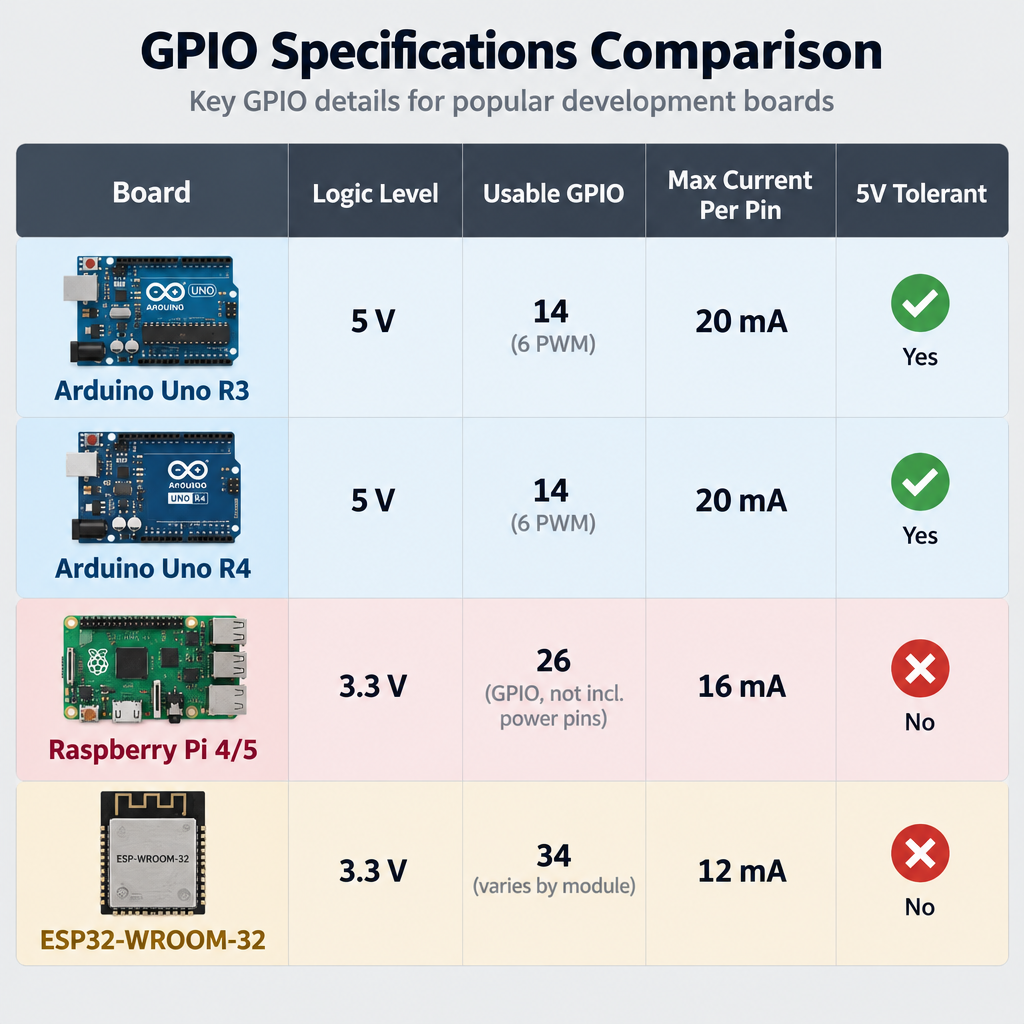
The headline difference is logic voltage. The Arduino Uno runs at 5 V, while the Raspberry Pi and ESP32 run at 3.3 V and are not 5 V tolerant. The table summarises the hardware I test with on the bench.
| Board | Logic level | Usable GPIO | Analog inputs | PWM | 5 V tolerant inputs |
|---|---|---|---|---|---|
| Arduino Uno R3 (ATmega328P) | 5 V | 20 (D0 to D13 plus A0 to A5) | 6 channels, 10-bit | 6 pins (3, 5, 6, 9, 10, 11) | Yes, native 5 V |
| Arduino Uno R4 Minima (Renesas RA4M1) | 5 V | 20 | 6 channels, up to 14-bit | 6 pins | Yes, native 5 V |
| Raspberry Pi 4 / Pi 5 (40-pin header) | 3.3 V | 28 (GPIO0 to GPIO27), 26 in practice | None | 2 hardware channels on GPIO12, 13, 18, 19 | No |
| ESP32-WROOM-32 DevKitC | 3.3 V | 34 in silicon, roughly 25 practical | 18 channels, 12-bit | 16 LEDC channels on most output pins | No |
The Raspberry Pi is a Linux computer, so its GPIO is reached through the operating system rather than direct register writes in a loop. On the Pi 5, GPIO moved to the RP1 southbridge chip, and the old RPi.GPIO library does not support it. I now use gpiozero, which ships with Raspberry Pi OS and uses the lgpio backend on the Pi 5, so the same script runs on a Pi 4 and a Pi 5. Plenty of the “raspberry pi projects” you find online still use RPi.GPIO, and porting them to gpiozero usually takes ten minutes.
Current and voltage limits you should not exceed
A GPIO pin is a logic signal, not a power supply. It can light a small LED through a resistor and drive a transistor’s input, but it cannot run a motor, a solenoid or a long LED strip directly.
| Board | Recommended current per pin | Hard limits | Internal pull resistor |
|---|---|---|---|
| Arduino Uno R3 | 20 mA | 40 mA absolute max per pin; 200 mA total through the chip’s VCC and GND pins | About 20 to 50 kΩ |
| Arduino Uno R4 Minima | 8 mA | Treat 8 mA as the ceiling | Internal pull-up available |
| Raspberry Pi 4 / 5 | Up to 16 mA | About 50 mA combined across all GPIO (long-standing Raspberry Pi guidance) | About 50 to 65 kΩ |
| ESP32-WROOM-32 | About 20 mA at default drive strength | 40 mA absolute max per pin | About 45 kΩ |
The Uno R4 figure catches people who move code over from an R3. A project that drove an LED at 18 mA on the older board is now over spec on the newer one, even though the sketch compiles and runs unchanged.
Power check
Never feed 5 V into a Raspberry Pi or ESP32 GPIO pin; there is no protection and the damage is permanent. Use a level shifter or a 1 kΩ / 2 kΩ divider, which turns 5 V into about 3.33 V.
Pins I avoid on each board
Not every pin labelled GPIO is free to use. Several are wired to boot logic, flash memory or the serial port, and using them causes behavior that looks like a software bug.
| Board | Pins | Why I avoid them |
|---|---|---|
| ESP32 | GPIO6 to GPIO11 | Connected to the onboard SPI flash; touching them crashes the chip |
| ESP32 | GPIO34 to GPIO39 | Input only, and no internal pull-up or pull-down |
| ESP32 | GPIO0, 2, 5, 12, 15 | Strapping pins read at boot; GPIO12 held high selects 1.8 V flash and can stop the board booting |
| ESP32 | GPIO1, GPIO3 | UART0 TX and RX, used for uploads and Serial Monitor |
| Raspberry Pi | GPIO0, GPIO1 (physical 27, 28) | Reserved for HAT ID EEPROM |
| Raspberry Pi | GPIO2, GPIO3 (physical 3, 5) | Fixed 1.8 kΩ pull-ups to 3.3 V for I2C |
| Raspberry Pi | GPIO14, GPIO15 (physical 8, 10) | Serial console when enabled |
| Arduino Uno | D0, D1 | USB serial; anything attached can block uploads |
| Arduino Uno | A4, A5 | Shared with I2C SDA and SCL on the R3 |
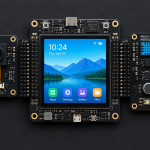
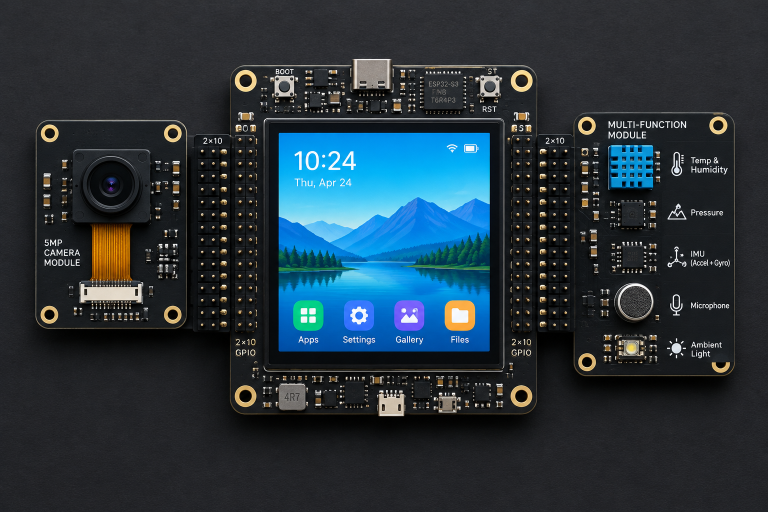
On the ESP32, ADC2 pins cannot be read with analogRead() while Wi-Fi is active, so I keep analog sensors on ADC1 (GPIO32 to GPIO39). Compact all-in-one boards make pin budgeting even tighter. On the Cheap Yellow Display used in our “cyd privacy and camera scanner” build, the screen, touch controller and SD slot consume most of the ESP32’s pins, leaving only a handful on the expansion connectors.
Working with a breadboard
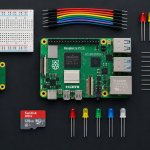
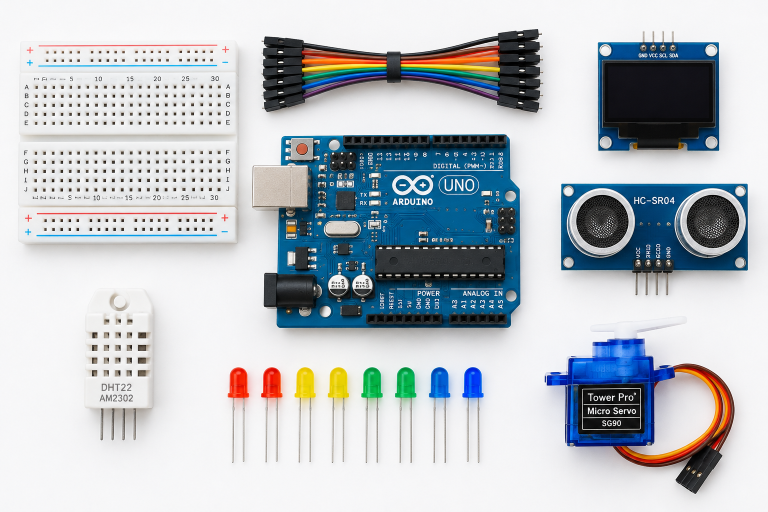
A standard solderless breadboard has two power rails down each long side and rows of five connected holes in the middle, split by a centre channel. The rails are not always continuous across the full length on cheaper boards, so I check with a meter before trusting them. Components that straddle the channel, such as a tactile button, have their legs on separate electrical rows, which is what makes a button usable at all.
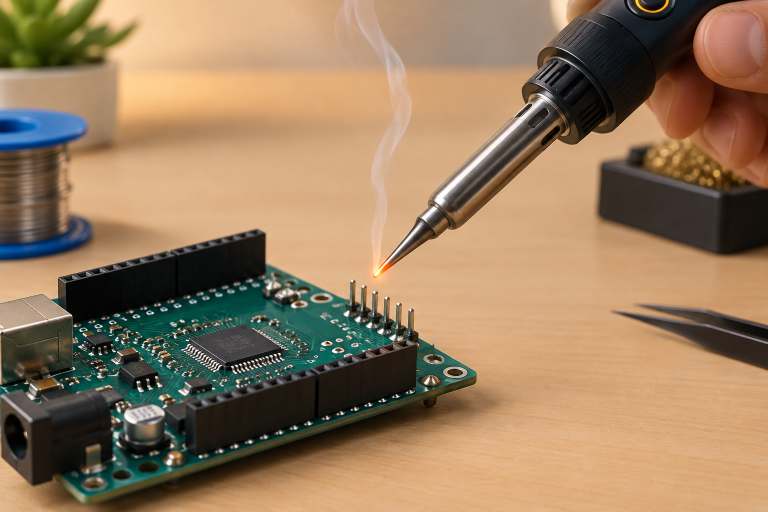
For a Raspberry Pi, a 40-pin ribbon cable and breakout board saves a lot of miscounting. Running pinout in a terminal on Raspberry Pi OS prints the header map with GPIO numbers next to physical pin numbers, which is the fastest navigation aid I know. Once a circuit works and needs to survive being bumped, I move it to perfboard and solder it; a decent “soldering iron” with temperature control makes that step much less frustrating.
Wiring the test circuit
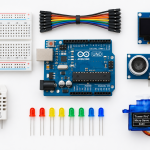
Parts
| Part | Spec | Qty |
|---|---|---|
| Board | Arduino Uno R3/R4, Raspberry Pi 4/5 or ESP32 DevKitC | 1 |
| LED | 5 mm red, forward voltage about 2 V | 1 |
| Resistor | 330 Ω, 1/4 W | 1 |
| Pushbutton | 6 mm tactile, 4-pin | 1 |
| Breadboard | Half size, 400 points | 1 |
| Jumper wires | Male-to-male (Uno, ESP32) or female-to-male (Pi) | 5 |
The resistor value follows Ohm’s law. On the Uno, (5 V minus 2 V) divided by 330 Ω gives about 9 mA, inside both the R3 and R4 limits. On a 3.3 V board the same resistor gives about 4 mA, which is dimmer but clearly visible and kind to the Pi’s shared current budget.
Wiring
| Wire | Arduino Uno pin | Raspberry Pi pin | ESP32 DevKitC pin | Goes to | Purpose |
|---|---|---|---|---|---|
| 1 | D9 | GPIO17 (physical 11) | GPIO23 | 330 Ω resistor, then LED anode (long leg) | LED output signal |
| 2 | GND | GND (physical 9) | GND | LED cathode (short leg) | LED return |
| 3 | D2 | GPIO27 (physical 13) | GPIO4 | Button leg A | Button input |
| 4 | GND | GND (physical 14) | GND | Button leg B, diagonal to leg A | Button to ground |
Using diagonally opposite legs on a 4-pin tactile button guarantees you cross the switch rather than landing on two legs that are always connected.
Setting a GPIO output pin and blinking an LED
Each example below sets one pin as an output, sets another as an input with the internal pull-up, and lights the LED while the button is held. The application logic is identical; only the API changes.
Arduino Uno (Arduino IDE 2.x)
const int LED_PIN = 9;
const int BUTTON_PIN = 2;

void setup() {
  pinMode(LED_PIN, OUTPUT);
  pinMode(BUTTON_PIN, INPUT_PULLUP);  // reads HIGH until pressed
}

void loop() {
  if (digitalRead(BUTTON_PIN) == LOW) {  // pressed = connected to GND
    digitalWrite(LED_PIN, HIGH);
  } else {
    digitalWrite(LED_PIN, LOW);
  }
}
Raspberry Pi 4 or 5 (Python 3, gpiozero)
from gpiozero import LED, Button
from signal import pause

led = LED(17)        # BCM numbering: GPIO17 = physical pin 11
button = Button(27)  # internal pull-up enabled by default button.when_pressed = led.on
button.when_released = led.off pause()
gpiozero uses BCM GPIO numbers, not physical pin numbers. Mixing the two index systems is the most common reason a Pi LED stays dark. On Raspberry Pi OS Bookworm, pinctrl get 17 shows the current mode and level of a pin, which is handy for confirming that the software actually changed something.
ESP32 DevKitC (Arduino-ESP32 core 3.x)
const int LED_PIN = 23;
const int BUTTON_PIN = 4;

void setup() {
  pinMode(LED_PIN, OUTPUT);
  pinMode(BUTTON_PIN, INPUT_PULLUP);
  Serial.begin(115200);
}

void loop() {
  bool pressed = (digitalRead(BUTTON_PIN) == LOW);
  digitalWrite(LED_PIN, pressed ? HIGH : LOW);
  Serial.println(pressed ? "pressed" : "released");
  delay(50);  // crude debounce and keeps serial readable
}
The digital functions are unchanged in core 3.x, but the PWM functions are not. If you add dimming, use ledcAttach(pin, freq, resolution) and ledcWrite(pin, duty), because the older ledcSetup() and ledcAttachPin() calls were removed in that release and third-party tutorials written before 2024 will not compile.
Maker tip
Before blaming code, swap the LED’s legs. A reversed LED looks identical to a dead GPIO pin and costs nothing to check.
Testing output and input pins
A multimeter turns guesswork into measurement. I test outputs and inputs separately, because a pin that drives correctly can still read wrongly, and the reverse.
Pin test routine
- Power the board and upload a sketch that sets the pin HIGH permanently.
- Measure from pin to GND with no load; expect about 5 V on the Uno or 3.3 V on the Pi and ESP32.
- Change the sketch to LOW and confirm the reading drops near 0 V.
- Set another pin to INPUT with no pull-up and print its value; touch the wire and watch it flicker.
- Switch that pin to INPUT_PULLUP and confirm it reads a steady HIGH.
- Short the pin to GND with a jumper and confirm a steady LOW.
Step four is worth doing once on purpose. Seeing a floating input change value when your finger gets close teaches pull resistors more effectively than any diagram. If an output measures correctly with no load but sags badly with the LED attached, you are pulling too much current, so check the resistor value with the meter rather than its colour bands.
Running out of pins: IC I/O expanders
Larger builds hit the pin limit quickly, especially on the Uno and on display-heavy ESP32 boards. Rather than switching to a bigger board, I add an I/O expander, which is a small IC that provides extra GPIO over a bus using two or three pins.
| Chip | Interface | Extra pins | Addresses or chaining | Good for |
|---|---|---|---|---|
| MCP23017 | I2C | 16 bidirectional | 8 addresses, 0x20 to 0x27 | Button matrices, mixed inputs and outputs |
| MCP23S17 | SPI | 16 bidirectional | Hardware address pins | Faster updates than I2C |
| PCF8574 | I2C | 8 quasi-bidirectional | 0x20 to 0x27 (PCF8574A: 0x38 to 0x3F) | Character LCD backpacks, simple inputs |
| 74HC595 | Shift register (3 pins) | 8 outputs | Daisy-chain for 16, 24, 32 | LED bars, 7-segment displays |
| 74HC165 | Shift register (3 pins) | 8 inputs | Daisy-chain | Reading many switches |
The MCP23017 runs from 2.7 V to 5.5 V, so the same chip is compatible with all three boards as long as you power it from the board’s logic voltage. Several of our “arduino projects” use a 74HC595 to drive more LEDs than the Uno has pins.
Common mistakes
- Driving loads directly. Motors, relays and buzzers with coils need a transistor or MOSFET driver and a flyback diode. The GPIO only switches the driver.
- Forgetting a common ground. When a sensor or driver has its own supply, its GND must connect to the board’s GND or the signal has no reference.
- Mixing 5 V and 3.3 V logic. A 5 V sensor output into a Pi or ESP32 input will eventually kill the pin. Divide it down or use a level shifter.
- Using reserved pins. ESP32 boot failures after adding a part almost always trace back to GPIO12, GPIO0 or GPIO2 being pulled the wrong way at reset.
- Confusing pin numbering. Physical pin 11 on a Pi is GPIO17. Arduino’s D9 is not ATmega port pin 9. Check the board’s own pinout every time.
- Leaving inputs floating. Every input needs a defined state, either from an internal pull resistor or an external one.
FAQ
What does GPIO stand for?
GPIO stands for general purpose input/output. It describes a chip pin whose role as an input or output is chosen by software rather than fixed in hardware.
Can a GPIO pin power a motor or LED strip?
No. A GPIO pin can supply only a small current, and the limit varies by board: Raspberry Pi pins are typically limited to 8 to 16 mA, while an Arduino Uno (ATmega328P) pin can source or sink up to 40 mA at most. Use the pin to switch a transistor, MOSFET or motor driver that takes current from a separate supply.
Are Raspberry Pi GPIO pins 5 V tolerant?
No. Raspberry Pi GPIO pins are 3.3 V only, and applying 5 V can permanently damage the pin or the whole board. The same applies to the ESP32.
Why does my input pin read random values?
The pin is floating. Enable the internal pull-up (INPUT_PULLUP on Arduino and ESP32, the default for Button in gpiozero) or add an external 10 kΩ resistor to give it a defined state.
Which GPIO pins are safe to use on an ESP32?
On an ESP32-WROOM-32, GPIO4, 13, 14, 16 to 19, 21 to 23, 25 to 27 and 32 to 33 are the least troublesome for general use. Avoid GPIO6 to 11, treat 34 to 39 as input only, and be careful with the strapping pins 0, 2, 5, 12 and 15.
Does RPi.GPIO work on the Raspberry Pi 5?
No. The Pi 5 handles GPIO through its RP1 chip, which RPi.GPIO does not support. Use gpiozero or lgpio instead; the rpi-lgpio package offers a drop-in replacement for older scripts.