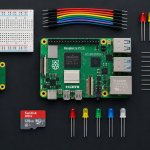
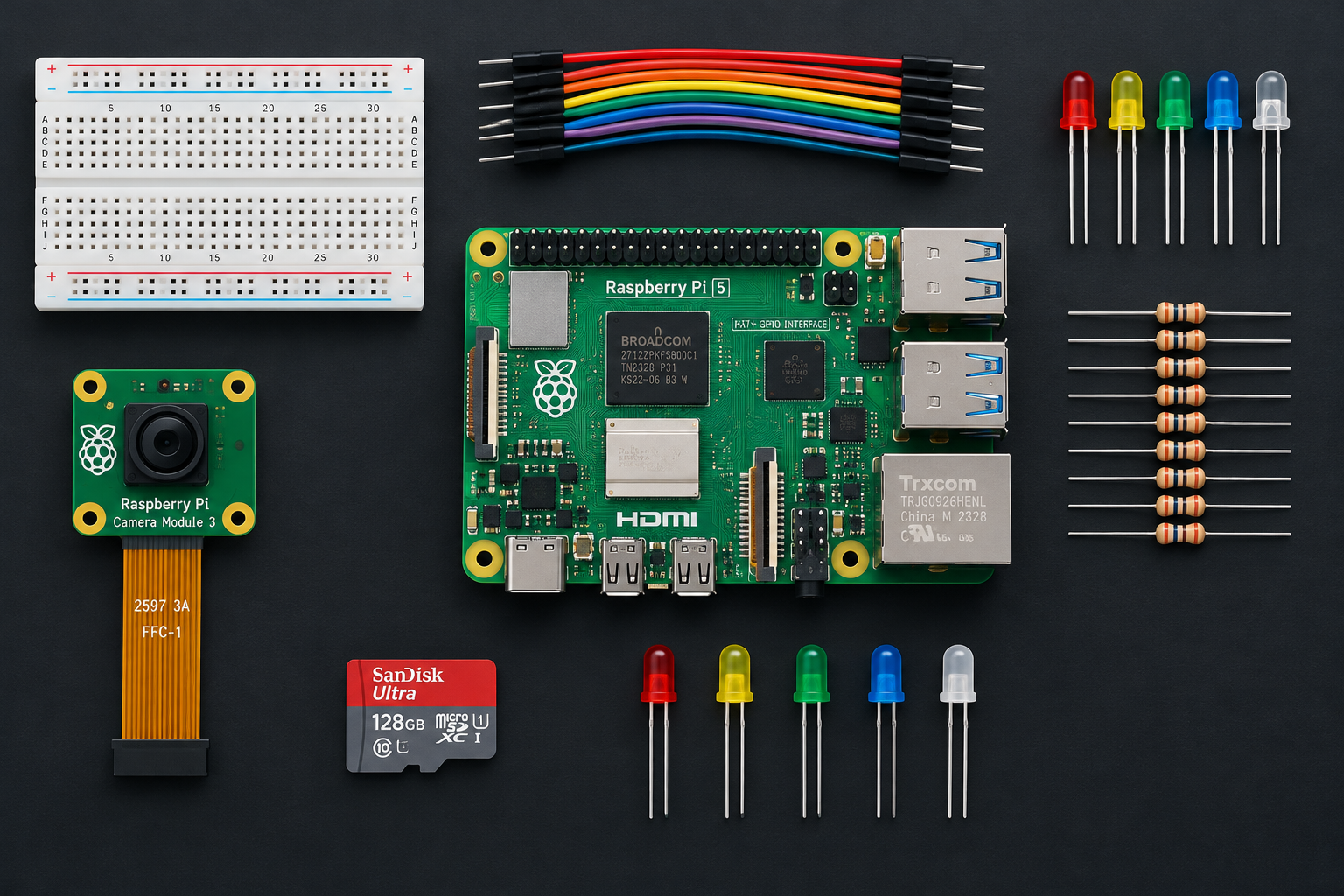
The best Raspberry Pi projects for most people are a button-and-LED circuit, a Pi-hole ad blocker, a retro games console, and a sensor or camera build. These teach the skills every later project reuses: flashing an OS image, working over SSH, wiring GPIO safely, and writing short Python scripts. Below are 15 builds grouped by difficulty, each with the board to use, the parts involved, and the specific gotchas that trip up first attempts.
Choose the board before you choose the project
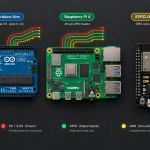
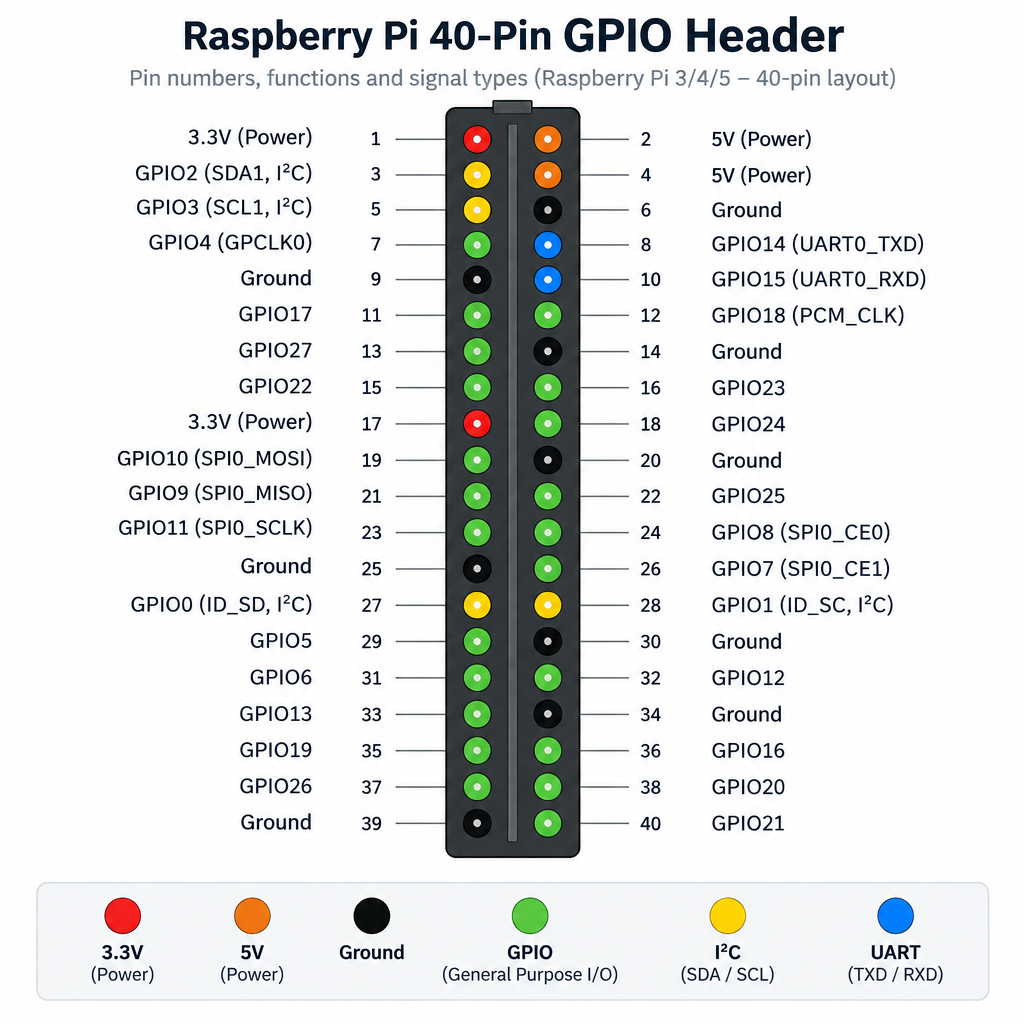
Most failed builds start with the wrong board rather than the wrong code. The Raspberry Pi family includes full Linux computers and the Pico microcontrollers, and these two groups do very different jobs. A Pico cannot run Pi-hole or a media centre. A Pi 5 is overkill for blinking a status LED inside a battery-powered sensor. The table below covers the boards you are most likely to buy for a new build.
| Board | Processor | Memory | Power input | Launch price | Best for |
|---|---|---|---|---|---|
| Raspberry Pi 5 | Broadcom BCM2712, quad-core Arm Cortex-A76 at 2.4 GHz | 2, 4, 8 or 16 GB options | 5 V, 5 A USB-C recommended | $60 (4 GB, October 2023) | AI, NAS, desktop, Home Assistant, anything demanding |
| Raspberry Pi 4 Model B | Broadcom BCM2711, quad-core Cortex-A72 | 1 to 8 GB options | 5 V, 3 A USB-C | $35 (2019) | Media centres, RetroPie, servers |
| Raspberry Pi Zero 2 W | RP3A0, quad-core Cortex-A53 at 1 GHz | 512 MB | 5 V micro USB | $15 (October 2021) | Pi-hole, small cameras, compact headless builds |
| Raspberry Pi Pico 2 W | RP2350, dual-core at 150 MHz | 520 KB SRAM, 4 MB flash | 1.8 to 5.5 V via VSYS | $7 (November 2024) | Sensors, LEDs, low-power controllers, MicroPython |
Launch prices are historical. Raspberry Pi has raised prices on several memory-heavy models since launch because of rising memory costs, so check an approved reseller for the current figure before you budget a build.
The Pi 5 adds features that matter for specific projects. It has a PCIe 2.0 x1 connector for NVMe storage and AI accelerators, a built-in real-time clock with a battery connector, a power button, and two four-lane MIPI connectors for cameras or displays. Some of the projects below require these features, and the article flags them where they apply.
Setup that every project shares
Nearly every Linux-based Raspberry Pi project starts with the same three jobs: write an OS image to a microSD card, configure it so you can reach the Pi over the network, and confirm the power supply can carry the load. Do these once properly and every later build is faster.
First-boot setup
- Install Raspberry Pi Imager on your computer.
- Choose your board, then Raspberry Pi OS.
- Open the OS customisation settings before writing.
- Set hostname, username, password and Wi-Fi.
- Enable SSH, write the card, then boot.
- Run sudo apt update && sudo apt full-upgrade.
The hostname you set in Imager matters more than you might expect. Older images defaulted to raspberrypi, so you would reach the board at raspberrypi.local. If you run several Pis on one network, give each a distinct name such as pihole or weather so that you can find each one by name rather than guessing IP addresses from your router’s client list.
Use a reputable microSD card of at least 32 GB with an A1 or A2 application performance rating. Cheap unbranded cards are the most common cause of corrupted file systems and boot loops. For always-on servers such as a NAS or Home Assistant, plan to move to an SSD later.
If you want a desktop without a monitor, Raspberry Pi Connect is a free service from Raspberry Pi that lets you view the Pi’s desktop and open a remote shell from a web browser. It is useful for projects that live inside a cupboard or behind a TV.
Power check
A Pi 5 wants a 5 V, 5 A supply. On a weaker supply it limits total USB current to 600 mA, which can starve SSDs and cameras.
GPIO rules to learn before you wire anything
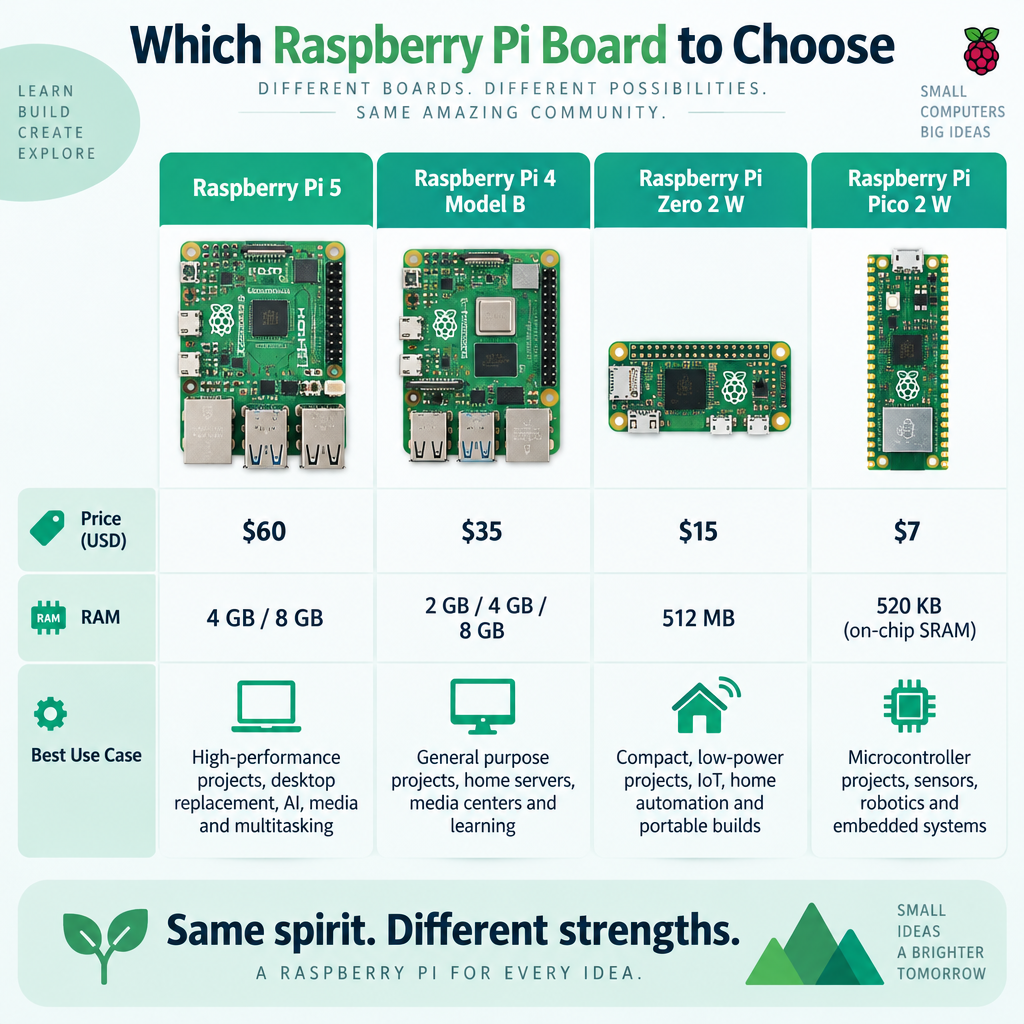
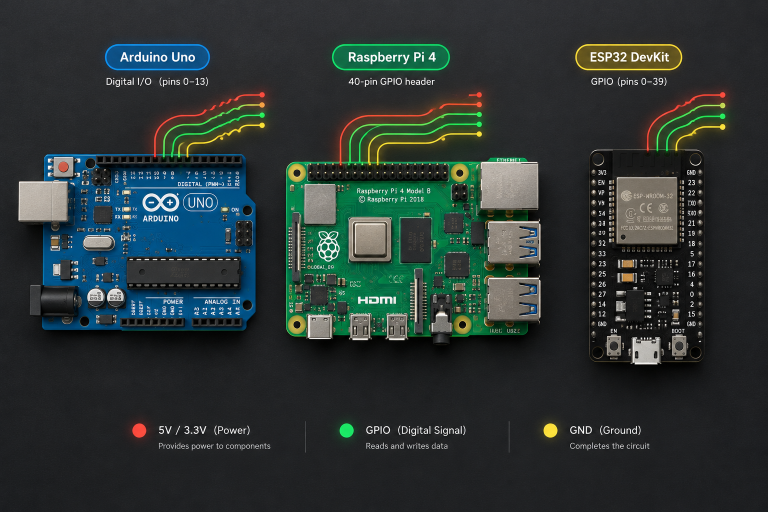
The 40-pin header is what separates a Raspberry Pi from an ordinary small computer. It is also where most boards get damaged. Please read these rules before you connect a single jumper wire, because they apply to every hardware project in this list.
- GPIO pins use 3.3 V logic and are not 5 V tolerant. Feeding 5 V into a GPIO input can permanently damage the processor. Use a level shifter or voltage divider for 5 V sensors.
- Pins source very little current. The commonly cited limits are 16 mA per pin and about 50 mA across all pins together. That drives an LED through a resistor, never a motor, relay coil or LED strip directly.
- There are two numbering systems. Software libraries such as gpiozero use BCM GPIO numbers. The physical position on the header is a different number. GPIO17, for example, sits at physical pin 11.
- The 5 V pins connect straight to the supply. They are not regulated outputs and offer no protection, so a short circuit there can take out the board.
| Physical pin | Function | Physical pin | Function |
|---|---|---|---|
| 1 | 3.3 V power | 2 | 5 V power |
| 3 | GPIO2 (I2C SDA) | 4 | 5 V power |
| 5 | GPIO3 (I2C SCL) | 6 | Ground |
| 7 | GPIO4 | 8 | GPIO14 (UART TX) |
| 9 | Ground | 10 | GPIO15 (UART RX) |
| 11 | GPIO17 | 12 | GPIO18 |
| 13 | GPIO27 | 14 | Ground |
| 15 | GPIO22 | 16 | GPIO23 |
On a Pi 5, the older RPi.GPIO library does not work because GPIO is now handled by the RP1 I/O controller. Use gpiozero, which is preinstalled on Raspberry Pi OS and works across Pi models.
Beginner Raspberry Pi projects
These builds need no soldering and little or no coding. Each one teaches a skill you will reuse in the intermediate and advanced projects later in this list.
1. Button-controlled LED (your first GPIO circuit)
This is the “hello world” of physical computing, and it is worth building even if you are impatient to start something bigger. You learn breadboard layout, resistor maths, input versus output pins, and event-driven Python in about half an hour.
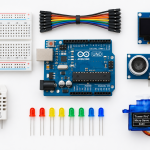
Parts: any 40-pin Raspberry Pi, a breadboard, a 5 mm LED, a 330 Ω resistor, a momentary push button, and four jumper wires.
| From | To | Purpose |
|---|---|---|
| Pi physical pin 11 (GPIO17) | 330 Ω resistor, then LED anode (long leg) | LED signal |
| LED cathode (short leg) | Pi physical pin 9 (GND) | LED return |
| Pi physical pin 13 (GPIO27) | Button, one side | Button input |
| Button, other side | Pi physical pin 14 (GND) | Button return |
The resistor value is a worked example of Ohm’s law. A typical red LED drops about 2 V, which leaves 1.3 V across the resistor from a 3.3 V pin, so the current is 1.3 V divided by 330 Ω, roughly 3.9 mA. That is bright enough to see and comfortably inside the per-pin limit.
from gpiozero import LED, Button
from signal import pause

led = LED(17)        # BCM numbering: GPIO17, physical pin 11
button = Button(27)  # GPIO27, physical pin 13; internal pull-up is on by default button.when_pressed = led.on
button.when_released = led.off pause()  # keep the script running and waiting for events
Save it as button_led.py and run python3 button_led.py. The button needs no external resistor because gpiozero enables the Pi’s internal pull-up, so the pin reads high until the button connects it to ground. If the LED stays dark, flip it around, since LEDs only conduct in one direction.
2. Pi-hole network-wide ad blocker
Pi-hole is a DNS sinkhole. Every device on your network asks it to look up domain names, and it returns nothing for domains on its blocklists, so ads and trackers fail to load on phones, smart TVs and laptops without any per-device software. It is one of the most popular Raspberry Pi projects because it delivers a visible benefit within twenty minutes.
A Zero 2 W or any spare older Pi handles a home network easily. Use Raspberry Pi OS Lite, give the Pi a static IP address (or a DHCP reservation on your router), and install with the official script:
curl -sSL https://install.pi-hole.net | bash
When the installer finishes, open http://<your-pi-ip>/admin in a browser to reach the dashboard. Then change the DNS server handed out by your router’s DHCP settings to the Pi’s IP address. Pi-hole version 6, released in 2025, replaced the older separate web server with one built into the core, so older tutorials that mention lighttpd configuration no longer apply.
Maker tip
Before pointing your whole network at Pi-hole, set one laptop’s DNS to the Pi manually and test for a day. Broken sites are easier to whitelist that way.
3. Retro games console
A Raspberry Pi running an emulation front end turns into a living-room console with a USB or Bluetooth controller. RetroPie remains the best-known option for Pi 4 and earlier. At the time of writing, its official prebuilt images target those older boards, so Pi 5 owners usually choose Batocera or Recalbox, both of which publish Pi 5 images.
Flash the image with Raspberry Pi Imager, plug in a controller, and the front end walks you through button mapping on first boot. For performance, a Pi 4 handles 8-bit and 16-bit systems with ease, while a Pi 5 gives more headroom for later consoles. Only load games you have the legal right to use, such as dumps of cartridges you own or titles released free by their developers.
4. Media centre with Kodi or LibreELEC
LibreELEC is a minimal operating system that boots straight into Kodi, the open-source media player. It plays files from local storage or a network share, organises films and series with artwork, and supports add-ons for streaming services and live TV channels where you have a tuner or legal source.
Both the Pi 4 and Pi 5 decode 4K HEVC video in hardware and drive 4K displays over their micro-HDMI ports. Use a micro-HDMI to HDMI cable rated for 4K, and enable HDMI-CEC in Kodi so your existing TV remote controls the interface. Pair this with project 9 below and your media library lives on a NAS rather than a crowded SD card.
5. Learn coding with Scratch and Python
Raspberry Pi OS with desktop includes Thonny, a beginner-friendly Python editor, and Scratch 3 is available through the Recommended Software tool. Thonny shows variables as your code runs, which makes it far easier to see why a loop misbehaves. Start with Python’s built-in turtle module, which draws on screen, and try recreating a simple logo with shapes and colours before moving on to text-based games.
This is the project most aimed at younger makers, and the Raspberry Pi Foundation supports it with free material covered in the section on clubs and events below.
Intermediate Raspberry Pi projects
These builds combine hardware, Linux administration and a few dozen lines of code. Expect an afternoon or a weekend each.
6. Weather station with a BME280 sensor
The Bosch BME280 measures temperature, humidity and barometric pressure over I2C, and breakout boards for it are cheap and widely available. It is the ideal sensor for learning I2C because it needs only four wires.
| From | To | Purpose |
|---|---|---|
| BME280 VIN | Pi physical pin 1 (3.3 V) | Sensor power |
| BME280 GND | Pi physical pin 6 (GND) | Ground |
| BME280 SDA | Pi physical pin 3 (GPIO2) | I2C data |
| BME280 SCL | Pi physical pin 5 (GPIO3) | I2C clock |
Enable I2C with sudo raspi-config, under Interface Options, then reboot. Run i2cdetect -y 1 and you should see the sensor at address 0x76 or 0x77, depending on the breakout. Recent Raspberry Pi OS releases block system-wide pip installs, so create a virtual environment first:
python3 -m venv --system-site-packages ~/weather-env
source ~/weather-env/bin/activate
pip install adafruit-blinka adafruit-circuitpython-bme280
import time
import board
from adafruit_bme280 import basic as adafruit_bme280 i2c = board.I2C()  # uses GPIO2 (SDA) and GPIO3 (SCL)
sensor = adafruit_bme280.Adafruit_BME280_I2C(i2c, address=0x76)  # change to 0x77 if needed while True:
    print(f"{sensor.temperature:.1f} C  "
          f"{sensor.relative_humidity:.1f} %  "
          f"{sensor.pressure:.1f} hPa")
    time.sleep(5)
The Adafruit library defaults to 0x77, and many inexpensive boards ship at 0x76, which is the single most common reason this script fails with a “no device found” error. Mount the sensor away from the Pi itself, because the processor warms nearby air and inflates temperature readings by several degrees. Once readings look sane, log them to a CSV file, push them to a Google Sheet, or send them to the Home Assistant hub described in project 8.
7. Time-lapse or wildlife camera
The Camera Module 3 uses a 12-megapixel Sony IMX708 sensor with autofocus, and it launched in January 2023 at $25. A NoIR version without an infrared filter suits night-time wildlife shots when paired with infrared illumination. The Pi 5 uses smaller 22-pin camera connectors, so you need a 22-pin to 15-pin adapter cable rather than the cable supplied with the camera.
Test the camera from the terminal before writing any code:
rpicam-hello
rpicam-still -o test.jpg
Then use the Picamera2 library, which is included with Raspberry Pi OS, for a simple time-lapse:
import time
from pathlib import Path
from picamera2 import Picamera2

out_dir = Path.home() / "timelapse"
out_dir.mkdir(exist_ok=True)

picam2 = Picamera2()
picam2.configure(picam2.create_still_configuration())
picam2.start()
time.sleep(2)  # let auto exposure and white balance settle

interval_s = 60   # one frame per minute
frames = 600      # ten hours

for i in range(frames):
    picam2.capture_file(str(out_dir / f"img{i:05d}.jpg"))
    time.sleep(interval_s)

picam2.stop()
Stitch the frames into a video on your computer or on the Pi with ffmpeg. Full-resolution stills from this sensor run to several megabytes each, so ten hours of frames can fill a small card, and an external drive is a sensible addition for long shoots. If you plan to point the camera beyond your own property, check local privacy rules first. For the opposite problem, detecting cameras and trackers around you, see our “cyd privacy and camera scanner” article.
8. Smart home hub with Home Assistant
Home Assistant is an open-source home automation platform that runs locally, which means your lights, sensors and thermostats keep working when your internet connection or a vendor’s cloud goes down. It integrates thousands of devices, and its automation editor works without coding, although YAML is there if you want it.
Raspberry Pi Imager lists Home Assistant OS under its specific-purpose operating systems, so installation is the same flash-and-boot routine as any other image. After first boot, give it a few minutes, then open http://homeassistant.local:8123 in a browser. Home Assistant OS needs at least 32 GB of storage, and a Pi 5 with an SSD is the most reliable choice because the database writes constantly and wears out SD cards.
9. Network storage (NAS) with encrypted drives
A Pi 4 or Pi 5 with Gigabit Ethernet and USB 3.0 makes a capable home file server for backups, photos and the media centre in project 4. The Pi 5 can also take NVMe storage through the PCIe connector using the official M.2 HAT+, which is faster and more robust than USB adapters.
The simplest route uses Samba for Windows, macOS and Linux file sharing. OpenMediaVault offers a web-based management interface if you prefer clicking to editing config files. For sensitive backups, encrypt the drive with LUKS so the data is unreadable if the disk is lost or stolen:
sudo apt install cryptsetup
sudo cryptsetup luksFormat /dev/sda1     # erases the partition
sudo cryptsetup open /dev/sda1 vault
sudo mkfs.ext4 /dev/mapper/vault
sudo mkdir -p /mnt/vault
sudo mount /dev/mapper/vault /mnt/vault
Confirm the device name with lsblk before running luksFormat, because pointing it at the wrong disk destroys that disk’s contents with no undo. Encryption also means you must unlock the drive after every reboot, which is a fair trade for a backup drive and an annoyance for a media share, so many builders encrypt one and leave the other open.
Power check
Bus-powered 2.5-inch hard drives can draw more current than a Pi’s USB ports supply on startup. Use a powered USB hub or a drive enclosure with its own adapter.
10. ADS-B flight tracker
Commercial aircraft broadcast their position, altitude and callsign on 1090 MHz using ADS-B. A Raspberry Pi with an RTL-SDR USB dongle and a tuned antenna can receive these signals and plot aircraft on a live local map. Receiving these broadcasts is passive listening only, and the project transmits nothing.
FlightAware’s PiAware software and the Flightradar24 feeder both run on Raspberry Pi OS. Both services reward people who share their data with upgraded accounts, which is a nice bonus for a build that costs little to run. Range depends mostly on antenna height and line of sight, so a mast or a loft beats a windowsill every time.
11. MagicMirror or wall dashboard
MagicMirror² is an open-source modular display platform that shows the time, calendar, weather, news headlines and transit departures on a monitor behind a two-way mirror. Modules written by the community add almost anything with an API. It runs on Node.js and Electron, so a Pi 4 or Pi 5 gives a far smoother experience than a Zero.
If woodwork does not appeal, the same idea works as a plain wall dashboard. Set the Pi to boot into a full-screen browser in kiosk mode pointed at a Home Assistant dashboard or a Grafana page showing your weather station data.
Advanced Raspberry Pi projects
These builds assume you are comfortable at the command line and can debug without a step-by-step guide. Most of them need a Pi 5.
12. On-device AI vision
Raspberry Pi now sells dedicated AI hardware. The AI HAT+ connects to the Pi 5’s PCIe port and comes in two versions: a Hailo-8L model rated at 13 TOPS and a Hailo-8 model rated at 26 TOPS, launched in October 2024 at $70 and $110. The AI Camera, launched in September 2024 at $70, takes a different approach by running neural networks on its Sony IMX500 sensor, so it works with any Pi that has a camera connector.
Either option runs object detection, pose estimation and image segmentation on live video without sending frames to a cloud service. Practical builds include a bird feeder camera that logs species, a doorbell that recognises a parcel on the step, or a counter for cars passing your house. Raspberry Pi’s camera software includes demo pipelines for both accelerators, which is the place to start before training your own models.
13. Local voice assistant or small language model
A Pi 5 with 8 GB or 16 GB of RAM can run small open language models locally through tools such as Ollama. Responses arrive noticeably slower than on a desktop GPU, and only compact models fit in memory, so treat it as an experiment in private, offline AI rather than a replacement for cloud chatbots.
The more practical version is a local voice assistant for Home Assistant. Speech-to-text and text-to-speech engines such as Whisper and Piper can run on the Pi, turning spoken commands into automations without audio leaving your home. Google’s earlier AIY Voice and Vision kits were also built around Raspberry Pi boards, and second-hand units still turn up as cheap enclosures for this sort of project.
14. Two-wheeled robot
A robot pulls together everything in this list: GPIO, power planning, Python and debugging under real-world conditions. You need a chassis with two DC motors, a motor driver board or HAT, a separate battery pack for the motors, and a power bank or regulator for the Pi.
gpiozero includes a Robot class that makes the first test drive a few lines long:
from gpiozero import Robot, Motor
from time import sleep

# Pins go to the motor driver's inputs, never to the motors directly
robot = Robot(left=Motor(4, 14), right=Motor(17, 18))

robot.forward(0.5)   # half speed
sleep(2)
robot.right(0.5)
sleep(1)
robot.stop()
The GPIO numbers above are examples, so match them to the inputs on your driver board. Add an ultrasonic distance sensor for obstacle avoidance, or the camera from project 7 for line following. Remember that ultrasonic sensors such as the HC-SR04 output a 5 V echo signal that needs a voltage divider before it reaches a 3.3 V GPIO pin.
Power check
Never power motors from the Pi’s 5 V or GPIO pins. Motor current spikes cause brownouts, SD card corruption and dead GPIO. Use a separate supply with a shared ground.
15. Self-hosted VPN or web server
A Pi on your home network can run WireGuard, a modern VPN protocol, so you can reach your Pi-hole, NAS and Home Assistant securely from your phone anywhere. Install it with sudo apt install wireguard and follow WireGuard’s configuration documentation, or use a mesh service such as Tailscale if you would rather not open ports on your router.
The same Pi can host a personal website, a wiki or a Git server. Keep security tight: use SSH keys instead of passwords, keep the system updated, and expose only the services you actually need. A small server that you patch regularly is safe to run; one you forget about for a year is the riskiest box on your network.
Match the project to your goal
If the list feels long, pick the row below that matches what you want and start there. Time estimates are rough guides for a first attempt, not benchmarks.
| Your goal | Start with | Recommended board | Difficulty | Rough time |
|---|---|---|---|---|
| Learn electronics | Button and LED | Any 40-pin Pi | Beginner | 30 minutes |
| Quick everyday win | Pi-hole | Zero 2 W or spare Pi | Beginner | 30 minutes |
| Family entertainment | Retro console or Kodi | Pi 4 or Pi 5 | Beginner | 1 to 2 hours |
| Data and sensors | Weather station | Any 40-pin Pi | Intermediate | An afternoon |
| Photography | Time-lapse camera | Pi 4, Pi 5 or Zero 2 W | Intermediate | An afternoon |
| Run your home | Home Assistant | Pi 5 with SSD | Intermediate | A weekend |
| Experiment with AI | AI HAT+ or AI Camera | Pi 5 | Advanced | A weekend or more |
| Build something that moves | Robot | Pi 4 or Pi 5 | Advanced | Several weekends |
Projects for young makers, clubs and classrooms
The Raspberry Pi Foundation, the charity behind the boards, runs free learning programmes aimed at young people. Its projects site offers step-by-step guides in Scratch, Python and HTML/CSS, translated into many languages, and many of them need no Raspberry Pi hardware at all. For a parent or teacher, these guides are the most structured path from first program to first physical build.
Join a free Code Club near you
Code Clubs are free, volunteer-led coding clubs for young people, typically aged 9 to 13, that meet in schools, libraries and community spaces. Clubs use the Foundation’s project guides, so children progress through Scratch and Python at their own pace with an adult on hand to help. If no club exists nearby, the Foundation welcomes volunteers to start one and provides the materials and training.
Share your creation at Coolest Projects
Coolest Projects is the Foundation’s technology showcase for young creators up to age 18. Participants submit anything they have made with technology, from Scratch games to hardware builds, and there is an online showcase alongside in-person events in some countries. It works as a goal for a school term: build a weather station or game, document it, and share it with an international audience.
Run code in space with Astro Pi
Astro Pi is a joint programme between the Raspberry Pi Foundation and the European Space Agency in which young people’s code runs on Raspberry Pi computers aboard the International Space Station. Mission Zero is a beginner-friendly challenge that suits a single lesson, while Mission Space Lab asks teams to design a real experiment. Eligibility depends on country and age, so check the current rules before you plan around it.
When a Pico or ESP32 is the better board
A full Raspberry Pi runs Linux, which brings boot times, SD card wear and a power draw that rules out small batteries. For a single-purpose gadget that reads a sensor and reports over Wi-Fi, a microcontroller is often the better tool. The Pico 2 W boots instantly, runs MicroPython or C, and costs a fraction of a Pi 5.
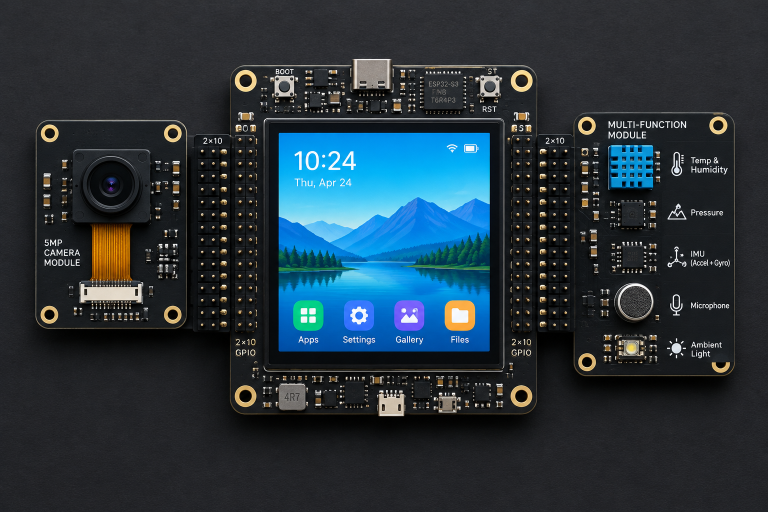
ESP32 boards fill a similar role, with the added appeal of cheap all-in-one modules that include a screen. Our “cyd privacy and camera scanner” build is a good example: it uses a $15 ESP32 board with a built-in touchscreen to scan for nearby Flock cameras and other trackers, a job that would waste a full Pi. A sound rule of thumb is to use a Pi when you need a file system, a desktop, a browser or heavy processing, and a microcontroller when you need low power, instant start-up and simple, reliable I/O.
Troubleshooting common Raspberry Pi project problems
Most problems across these projects come from a handful of causes. Work through this list before you assume the board is faulty.
- Lightning bolt icon or “low voltage” warnings. Your power supply cannot keep up. Run
vcgencmd get_throttled; a result of0x0means no undervoltage or throttling has occurred since boot. Anything else points to the supply or cable, so switch to the official adapter for your board. error: externally-managed-environmentwhen running pip. Recent Raspberry Pi OS releases protect the system Python. Create a virtual environment as shown in the weather station section, or install the Debian package withsudo apt install python3-<name>where one exists.RPi.GPIOerrors on a Pi 5. That library does not support the Pi 5’s RP1 chip. Rewrite the script with gpiozero, which handles the hardware differences for you.- I2C device missing from
i2cdetect. Check that I2C is enabled inraspi-config, that SDA and SCL are not swapped, and that the sensor is powered from 3.3 V. Then try the alternate address. - Camera not detected on a Pi 5. You are almost certainly using the 15-pin cable from the camera box. Fit a 22-pin to 15-pin adapter cable with the contacts facing the correct way.
- Random crashes under load. The Pi 5 throttles its CPU as it approaches 85 °C. Fit the official Active Cooler or a case with a fan for AI, NAS and emulation projects.
- Corrupted SD card after a power cut. Shut down with
sudo shutdown -h now, or use the Pi 5’s power button, rather than pulling the cable. For always-on builds, move to an SSD.
Next steps after your first build
Once one project works, the fastest way to improve is to connect two of them. Feed your weather station’s readings into Home Assistant, store camera time-lapses on your NAS, or let your Pi-hole dashboard live on the MagicMirror. Each link teaches networking, APIs and automation in a way no single project does.
Keep a short build log for every project: the OS image version, the libraries you installed, the pins you used and the problems you fixed. When an update breaks something six months later, that log turns a frustrating evening into a five-minute fix. It also gives you the write-up you need to share the build with a club, a forum or a showcase.
FAQ
What is the easiest Raspberry Pi project for a complete beginner?
The button-controlled LED is the easiest hardware project, and Pi-hole is the easiest software project. Both take under an hour, need no soldering, and teach skills that every later raspberry project builds on.
Which Raspberry Pi should I buy for projects?
Buy a Raspberry Pi 5 with 4 GB or 8 GB of RAM if you want one board that handles every project in this list. Choose a Zero 2 W for compact, low-power builds such as Pi-hole or a small camera, and a Pico 2 W for sensor gadgets that do not need Linux.
Do I need to know how to code to build Raspberry Pi projects?
No. Pi-hole, Home Assistant, LibreELEC and emulation images install with little or no coding. Python becomes useful once you start wiring sensors, LEDs and motors, and the short scripts in this article are a reasonable place to begin.
Can a Raspberry Pi damage itself if I wire it wrong?
Yes. Connecting 5 V to a GPIO pin, drawing too much current from a pin, or shorting the 5 V pin to ground can permanently damage the board. Double-check every wire against the pin table before powering on, and never drive motors or relays directly from GPIO.
Are Raspberry Pi projects good for kids?
They are an excellent fit. The Raspberry Pi Foundation publishes free project guides for young learners, runs free Code Clubs, and hosts the Coolest Projects showcase and the Astro Pi challenges. Starting with Scratch and moving to Python and simple circuits gives children a clear progression.