A liquid crystal display (LCD) is a flat screen that makes images by controlling light instead of producing it. A layer of liquid crystals sits between two polarizing filters and twists or blocks light from a backlight when we apply a voltage. This guide covers how that works, the panel types you will see on spec sheets, and which LCD module we reach for in Arduino, ESP32 and Raspberry Pi builds.
What Is an LCD? A Plain Definition
LCD stands for liquid crystal display. Put simply, it is a screen made of millions of tiny light valves. Each valve opens, closes or partly closes to let a controlled amount of light through.
The key word is valve. An LCD panel does not glow on its own. It needs light from behind (a backlight) or from the room in front (a reflective panel). That one fact explains most of an LCD’s behavior: why a dead backlight leaves a faint image you can still see with a torch, why blacks look slightly grey, and why your calculator runs for years on a coin cell.
You meet LCDs everywhere. Monitors, laptops, tablets, TVs, car dashboards, microwave timers, multimeters and the blue 16×2 character screen in nearly every Arduino starter kit are all LCD technology.
Where the “liquid crystal” part comes from
Liquid crystals are materials in a state between a liquid and a solid crystal. They flow like a liquid, but their rod-shaped molecules tend to line up in the same direction, like a crystal. The Austrian chemist Friedrich Reinitzer first described this odd behavior in 1888 while studying a compound from carrots.
For display work, two properties matter. The molecules line up along grooves on a surface, and they turn to follow an electric field. Combine those with polarized light and you have a switchable pixel.
How a Liquid Crystal Display Works
The layer stack, back to front
A typical backlit color LCD is a sandwich. Here it is, from the back of the device to your eye:
- Backlight. Today this is almost always white LEDs with a diffuser. Older monitors used CCFL tubes.
- Rear polarizer. Passes only light waves vibrating in one direction.
- Rear glass with transparent electrodes. These are usually indium tin oxide (ITO), which conducts electricity but lets light through. On active-matrix screens, this layer also holds a thin-film transistor for every subpixel.
- Alignment layer. A thin polymer film brushed with microscopic grooves so the crystals start in a known direction.
- Liquid crystal layer. Only a few micrometres thick.
- Front alignment layer and electrodes.
- Color filter. Red, green and blue filters, one per subpixel. Monochrome LCDs skip this.
- Front polarizer. Rotated relative to the rear one.
Twisting light: the twisted nematic trick
The classic design is the twisted nematic (TN) cell. The two alignment layers are rotated 90 degrees from each other, so the crystal molecules form a gentle quarter-turn spiral between the plates.
With no voltage applied, polarized light from the rear filter follows that spiral and rotates 90 degrees. It arrives at the front polarizer lined up correctly and passes through. The pixel looks bright.
Now apply a voltage across the cell. The molecules swing to line up with the electric field and the spiral untwists. Light no longer rotates, so the front polarizer blocks it. The pixel goes dark.
Apply a smaller voltage and the crystals only partly untwist. Some light gets through. That is how an LCD makes shades of grey, and with color filters, millions of colors.
Maker tip
Look at any LCD through polarized sunglasses and slowly tilt your head. At one angle the screen goes black, because your lenses block the light the front polarizer lets out. It is the quickest way to prove an LCD is a light valve.
How pixels and color are made
Every color pixel on a monitor or phone screen is three subpixels: red, green and blue. The backlight is white. Each subpixel’s crystal layer sets how much white light reaches its filter. Mix full red and full green with blue off and you see yellow. Turn all three fully open and you see white.
A 1920 x 1080 monitor has just over 2 million pixels, which means over 6 million individually controlled subpixels.
Passive matrix vs active matrix (TFT)
Driving millions of cells needs a trick, because nobody can run a wire to each one.
- Passive matrix LCDs use rows and columns of electrodes. The controller scans one row at a time, very quickly. It is cheap but slow, with lower contrast. Character LCDs, many graphic monochrome LCDs and calculators work this way, often using a supertwisted nematic (STN) cell that twists the crystals 180 to 270 degrees for sharper switching.
- Active matrix LCDs put a thin-film transistor (TFT) and a small capacitor at every subpixel. The transistor acts as a switch that holds the voltage until the next refresh. This is why color maker displays are sold as “TFT LCDs.” Every modern monitor, laptop and tablet LCD is active matrix.
One more detail matters if you ever drive bare glass yourself. Liquid crystals must be driven with AC, never steady DC. DC slowly breaks down the material through electrochemical effects and leaves permanent ghost images. Controller chips such as the HD44780 handle this for us by flipping the polarity many times per second.
LCD Panel Types Compared
When you shop for monitors or larger TFT modules, the panel type shapes the picture more than almost any other spec. These are typical figures for current panels. Individual models vary.
| Panel type | How the crystals move | Typical viewing angle | Typical static contrast | Strengths | Weak spots |
|---|---|---|---|---|---|
| TN (twisted nematic) | Twist and untwist | 170° H / 160° V | About 1000:1 | Cheap, fast response | Colors shift badly off-angle |
| IPS (in-plane switching) | Rotate flat, parallel to glass | 178° H / 178° V | About 1000:1 to 1500:1 | Accurate color, wide viewing angle | Grey “glow” in dark scenes |
| VA (vertical alignment) | Stand upright, then tilt | 178° H / 178° V | About 3000:1 to 5000:1 | Deep blacks, high contrast | Slower dark transitions, some smearing |
| STN (supertwisted nematic) | Twist 180° to 270° | Narrow | Low | Very cheap passive matrix | Slow, washed out, used for text screens |
For maker builds, the most visible difference shows up on small TFT modules. Cheap TN-based 1.8 and 2.8 inch boards look washed out from below or the side. An IPS module costs a little more and looks good from any angle, which matters for a panel mounted on a wall or a robot.
LCD vs LED, OLED and E-Paper
The term “LED screen” causes confusion. Most TVs and monitors sold as “LED” are really LCDs with an LED backlight. A true self-emissive LED display, such as OLED or microLED, makes light at each pixel and needs no liquid crystal layer.
Here is how the four display types you will meet in projects stack up.
| Display type | Makes its own light? | Power use | Sunlight readability | Typical maker examples |
|---|---|---|---|---|
| LCD (backlit) | No, uses backlight | Backlight dominates, steady draw | Fair to poor | 1602, 2004, ST7735, ILI9341 TFTs |
| LCD (reflective) | No, uses room light | Extremely low | Excellent | Calculators, multimeters, 7-segment glass |
| OLED | Yes, per pixel | Depends on content, black is nearly free | Poor | SSD1306 0.96 inch, SH1106 1.3 inch |
| E-paper | No, reflective | Zero while static, only draws on refresh | Excellent | Waveshare and Good Display panels |
On battery builds, the backlight is the part that hurts. The HD44780 controller on a 1602 draws around a milliamp or two, while the LED backlight on most modules draws tens of milliamps. Dimming or switching off the backlight is the single biggest power saving you can make.
Which LCD to Use in Your Projects
After years of building with these, we split maker LCDs into three families. The table lists the common modules with their usual controller and interface.
| Module | Controller | Resolution | Interface | Logic voltage | Good for |
|---|---|---|---|---|---|
| 1602 character LCD | HD44780 or compatible | 16 x 2 characters | 4/8-bit parallel or I2C backpack | 5 V (3.3 V versions exist) | Sensor readouts, menus |
| 2004 character LCD | HD44780 or compatible | 20 x 4 characters | Parallel or I2C backpack | 5 V | Multi-value dashboards |
| Nokia 5110 | PCD8544 | 84 x 48 pixels | SPI | 3.3 V | Tiny graphics, low power |
| 12864 graphic LCD | ST7920 or ST7565 | 128 x 64 pixels | Parallel or serial | Usually 5 V | 3D printer style menus |
| 1.8 inch TFT | ST7735 | 128 x 160 pixels | SPI | 3.3 V | Small color gauges |
| 2.4 / 2.8 inch TFT | ILI9341 | 240 x 320 pixels | SPI (some parallel) | 3.3 V | Color UIs, touch panels |
| 1.3 / 2.0 inch IPS | ST7789 | 240 x 240 or 240 x 320 | SPI | 3.3 V | Wearables, wide viewing angle |
| Raspberry Pi Touch Display 2 | Official DSI panel | 720 x 1280, 7 inch | DSI ribbon | Powered from Pi | Kiosks, home dashboards |
Character LCDs: 1602 and 2004
If you are new, start here. A 1602 shows two lines of 16 characters from a built-in font, so you never draw pixels yourself. The Arduino IDE ships the LiquidCrystal library for the parallel version, and the I2C backpack version needs only four wires. Most of our Arduino project ideas worth building start with one of these as the readout.
Buy the version with the I2C backpack already soldered on. It uses a PCF8574 I/O expander, usually at address 0x27 or 0x3F, and saves you about ten wires.
Graphic monochrome LCDs
The Nokia 5110 and 12864 boards let you draw lines, icons and custom fonts. They are passive matrix STN panels, so they are cheap and sip power with the backlight off. The u8g2 library by olikraus supports both and many more.
Color TFT LCDs
For anything with color, graphs or touch, use a TFT module on SPI. On Arduino, Adafruit_GFX with the matching Adafruit_ST7735 or Adafruit_ILI9341 driver is the easy path. On ESP32, Bodmer’s TFT_eSPI is much faster, and LVGL sits on top when you want buttons and sliders.
The ESP32-2432S028R, nicknamed the Cheap Yellow Display, bundles an ESP32 with a 2.8 inch 320 x 240 TFT and resistive touch for around $15. It is the board behind our CYD privacy and camera scanner build. For a more polished touchscreen platform, Espressif’s ESP-Mosaico kit pairs an ESP32-S31 with a touchscreen and plug-in modules.
Raspberry Pi displays
The Raspberry Pi Touch Display 2 launched in late 2024 at $60. It is a 7 inch, 720 x 1280 panel that connects over the DSI ribbon and works with Raspberry Pi OS without extra drivers. SPI TFTs also work on a Pi, but they refresh slowly for a full desktop. Several of our favorite Raspberry Pi projects, such as home dashboards and photo frames, are built around the official display.
Worked Example: Wiring a 1602 LCD With an I2C Backpack
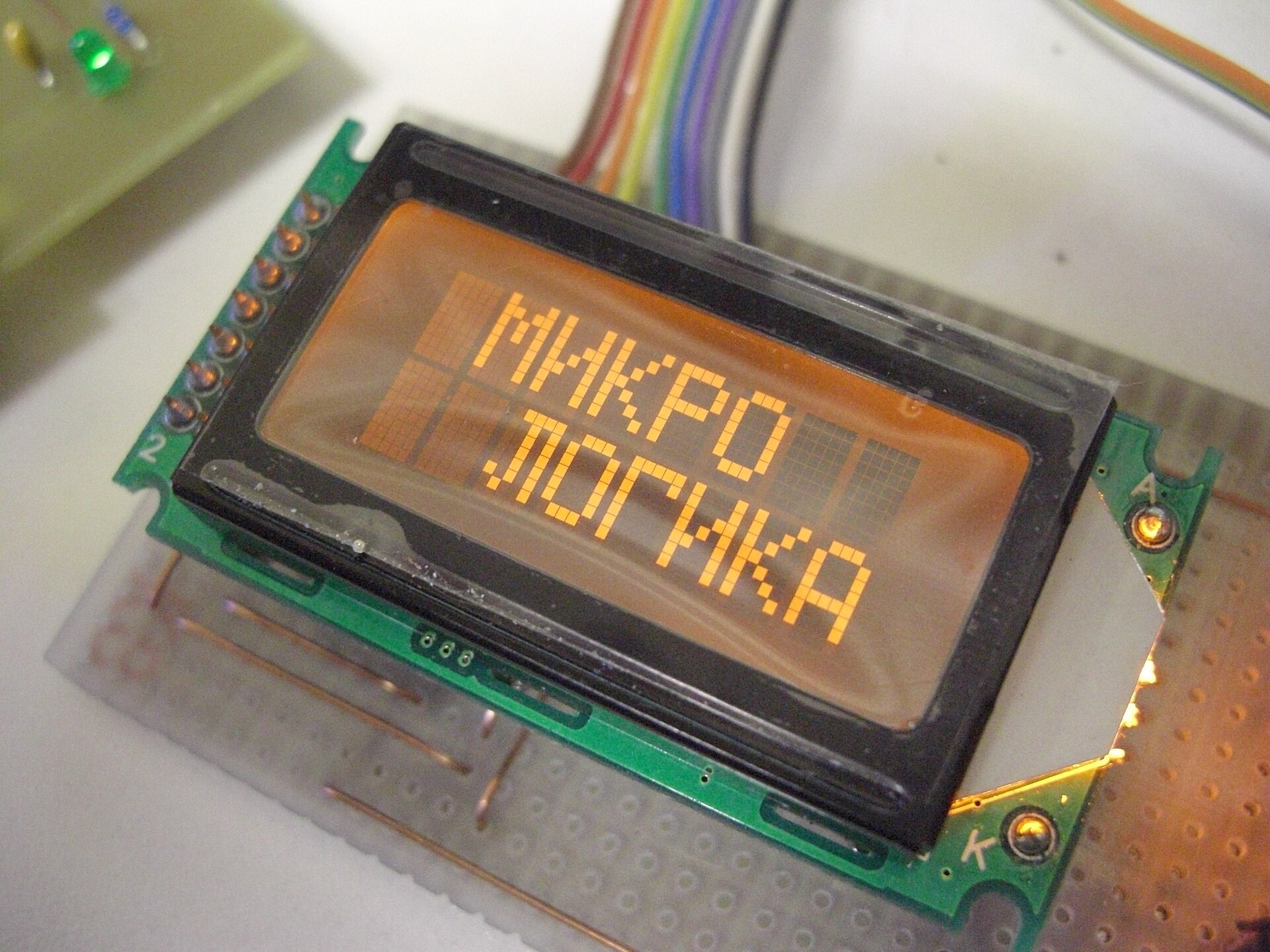
This is the setup we recommend for a first LCD. It assumes an Arduino Uno R3 or R4 and a 1602 module with a PCF8574 backpack already soldered on. If your backpack came loose, you will need a soldering iron to fit its 16 header pins.
The 16 pins on the bare module
The backpack hides these, but it helps to know what it is driving.
| LCD pin | Name | Purpose |
|---|---|---|
| 1 | VSS | Ground |
| 2 | VDD | Supply, usually 5 V |
| 3 | V0 | Contrast voltage from a potentiometer |
| 4 | RS | Register select: command or data |
| 5 | RW | Read/write, usually tied to ground |
| 6 | E | Enable, latches each byte |
| 7 to 14 | D0 to D7 | Data bus (4-bit mode uses D4 to D7) |
| 15 | A | Backlight anode (+) |
| 16 | K | Backlight cathode (−) |
Wiring table
| From (backpack) | To (Arduino Uno) | Wire purpose |
|---|---|---|
| GND | GND | Common ground |
| VCC | 5V | Powers logic and backlight |
| SDA | A4 (or SDA header pin) | I2C data |
| SCL | A5 (or SCL header pin) | I2C clock |
On an ESP32 DevKit, use GPIO 21 for SDA and GPIO 22 for SCL, the Arduino core defaults. On a Raspberry Pi, use GPIO 2 (physical pin 3) for SDA and GPIO 3 (physical pin 5) for SCL. Our guide to general purpose input output covers those pin numbering schemes in detail.
Power check
Most PCF8574 backpacks pull SDA and SCL up to VCC. Powered from 5 V, they put 5 V on the I2C lines, which can damage a Raspberry Pi or ESP32 (3.3 V GPIO). Use a bidirectional level shifter, or remove the backpack’s pull-up resistors and rely on the board’s 3.3 V pull-ups.
Build steps
- Install “LiquidCrystal I2C” by Frank de Brabander (version 1.1.2) from the Arduino Library Manager.
- Wire the four connections in the table above with the board unplugged.
- Plug in USB and check that the backlight comes on.
- Run an I2C scanner sketch to confirm the address, usually 0x27 or 0x3F.
- Upload the sketch below, changing the address if needed.
- Turn the blue contrast potentiometer on the backpack until text appears.
Arduino code
\#include <Wire.h>
\#include <LiquidCrystal_I2C.h>

// Address 0x27, 16 columns, 2 rows. Change to 0x3F if your scanner says so.
LiquidCrystal_I2C lcd(0x27, 16, 2);

void setup() {
  lcd.init();          // start I2C and initialise the HD44780
  lcd.backlight();     // switch on the LED backlight
  lcd.setCursor(0, 0);
  lcd.print("Artoo Maker Lab");
  lcd.setCursor(0, 1);
  lcd.print("Uptime:");
}

void loop() {
  lcd.setCursor(8, 1);
  lcd.print(millis() / 1000);
  lcd.print(" s   ");  // trailing spaces clear leftover digits
  delay(250);
}
Raspberry Pi version in Python
Enable I2C with sudo raspi-config (Interface Options), install the RPLCD library, and run this:
from time import sleep, monotonic
from RPLCD.i2c import CharLCD

lcd = CharLCD(i2c_expander='PCF8574', address=0x27, port=1, cols=16, rows=2)
start = monotonic()

lcd.clear()
lcd.write_string("Artoo Maker Lab")

while True:
    lcd.cursor_pos = (1, 0)
    lcd.write_string(f"Uptime: {int(monotonic() - start):<6}s")
    sleep(0.25)
How it works
The PCF8574 turns two I2C wires into eight output pins. The library sends each character as two 4-bit halves to the HD44780’s D4 to D7 pins, pulsing the E line to latch each half. The HD44780 looks up the character in its built-in font ROM, then drives the passive-matrix glass with the AC waveform the liquid crystals need. Your microcontroller never touches a single pixel.
Common Mistakes and Fixes
Most “broken” LCDs we see are fine. These are the usual culprits.
- Backlight on, no text. Contrast is wrong. Turn the potentiometer slowly through its full range. This fixes the problem more often than anything else.
- Top row shows solid blocks. The display has power but was never initialised. Check SDA and SCL are not swapped and that the address in your code matches the scanner result.
- Garbled or random characters. Loose jumper wires, a long unshielded I2C run, or a power dip when motors start. Shorten the wires and add a 100 µF capacitor across the module’s supply.
- Faint text on a 3.3 V board. Most 1602 modules expect 5 V. At 3.3 V, the contrast voltage cannot go low enough. Buy a 3.3 V version, or power the LCD from 5 V and level-shift the I2C lines.
- Flicker on a TFT. Clearing the whole screen every loop. Redraw only the area that changed.
- Sluggish display in the cold. Liquid crystals thicken at low temperatures and switch slowly. Below about 0 °C, cheap modules smear. Use an extended-temperature part for outdoor builds.
- Ghost image that will not fade. Static content left for weeks can cause image retention, especially on cheap TFTs. Move content around or blank the screen when idle.
FAQ
What does LCD mean?
LCD means liquid crystal display. It describes any screen that uses a layer of liquid crystals between polarizers to control how much light passes through each pixel.
Is an LCD screen the same as an LED screen?
Usually, yes. Most screens marketed as “LED” are LCD panels lit by an LED backlight. A true LED display such as OLED or microLED produces light at every pixel and has no liquid crystal layer.
Do LCDs use a lot of battery?
The liquid crystal layer itself uses very little power. The backlight is the hungry part, drawing tens of milliamps on a small module. Reflective LCDs with no backlight, like those in calculators, can run for years on a coin cell.
Can I run a 1602 LCD from a 3.3 V ESP32 or Raspberry Pi?
The ESP32 or Pi can drive it, but the standard 1602 needs 5 V for clear contrast. Power the module from 5 V and use a level shifter on SDA and SCL, or buy a module rated for 3.3 V.
Why does my LCD show only boxes?
A row of solid blocks means the module has power but has not received its initialisation commands. Check your wiring, confirm the I2C address with a scanner sketch, and then adjust the contrast.
Which LCD should a beginner buy first?
A 1602 character LCD with an I2C backpack. It costs a few dollars, needs only four wires, and works with well-supported libraries on Arduino, ESP32 and Raspberry Pi. Move to an ILI9341 or ST7789 color TFT once you want graphics.