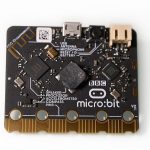
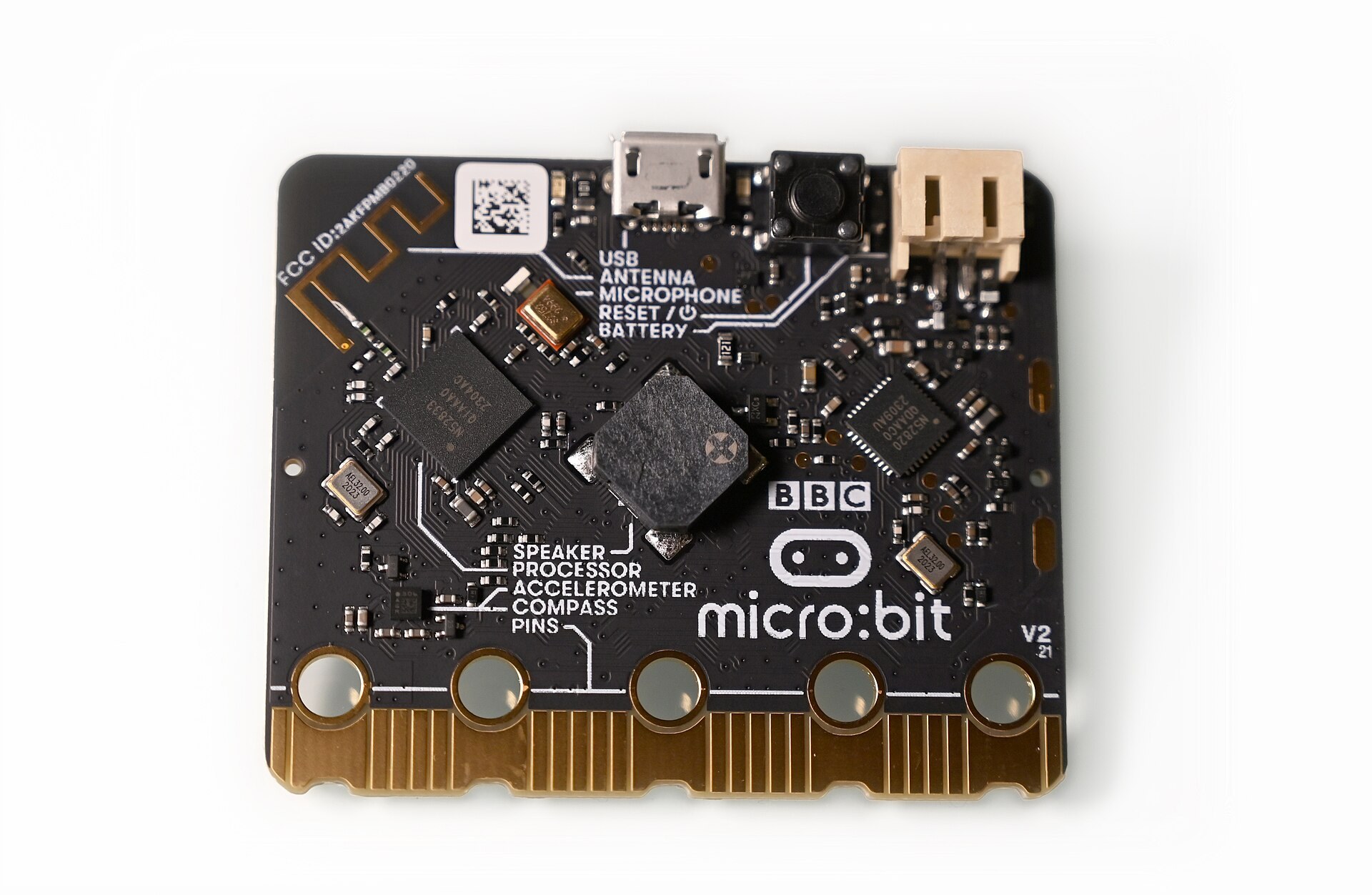
The BBC micro:bit is a pocket-sized programmable computer, about 4 cm by 5 cm, designed so that you can write your first program in a browser and see it running on real hardware within minutes. The current V2 board includes a 5×5 LED display, two buttons, motion and compass sensors, a microphone, a speaker and a radio. This guide explains what is on the board, what it costs, how to set it up, and which projects to build first.
What the BBC micro:bit is and where it came from
The BBC micro:bit is a small microcontroller board created to teach coding and digital making in schools. A microcontroller is a computer on a single chip that runs one program at a time, starts instantly, and reads sensors or switches outputs directly. The name deliberately recalls the BBC Micro, the 1980s home computer that taught a generation of British students to program.
The first version launched in the UK in 2016, when the BBC and a group of technology partners gave roughly a million boards free to Year 7 pupils. Responsibility for the project then passed to the Micro:bit Educational Foundation, a UK not-for-profit that still designs the hardware, runs the official website at microbit.org, and produces most of the free teaching materials you will find online. The board is now used in classrooms in many countries, and it has become a common first board for adults who want to understand electronics without starting from a bare chip.
You will see the name written as “bbc micro:bit”, “micro:bit” and “microbit”, and they all refer to the same family of boards. The colon is part of the official branding, but search engines and shop listings use every variation.
What makes it different from Arduino or Raspberry Pi
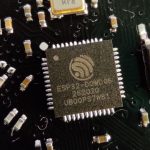
An Arduino Uno or an ESP32 development board arrives with almost nothing attached, so your first hour usually involves a breadboard, jumper wires and an external LED. The micro:bit takes the opposite approach and puts the sensors and outputs on the board, so your first program can read a button press, detect a shake, scroll text across the display and play a sound without any wiring at all.
That design choice is the main reason the micro:bit suits beginners. You learn programming concepts such as events, loops, variables and conditions first, and you add external electronics only once those ideas feel comfortable.
micro:bit V1 vs V2: which board you have
Two generations exist, and the difference matters because several of the most interesting features, including sound, the microphone, the touch logo and machine learning through CreateAI, only work on V2. Any board you buy new today is a V2. The board is currently sold as revision V2.21, which changed the USB interface chip during the global chip shortage but behaves identically to earlier V2 boards for programming purposes.
| Feature | micro:bit V1 (2016) | micro:bit V2 (2020 onward) |
|---|---|---|
| Main processor | Nordic nRF51822, Arm Cortex-M0, 16 MHz | Nordic nRF52833, Arm Cortex-M4 with FPU, 64 MHz |
| Flash memory | 256 KB | 512 KB |
| RAM | 16 KB | 128 KB |
| Bluetooth | Bluetooth Low Energy 4 | Bluetooth Low Energy 5 |
| Built-in speaker | No | Yes |
| Built-in microphone | No | Yes, with a front LED indicator |
| Touch-sensitive logo | No | Yes |
| Sleep/off via reset button | No | Yes |
| Power available from 3V pin | About 90 mA | About 200 mA |
| Edge connector | 25 pins | 25 pins, with notches for crocodile clips |
How to tell them apart in your hand
Look at the front of the board first. A V2 has a gold, oval-shaped logo above the LED display that works as a touch sensor, a small hole and LED next to it for the microphone, and small notches cut into the edge connector between the large pin rings. Turn the board over and a V2 also has a small round speaker in the middle of the back.
A V1 has a flat logo, no notches, and no speaker. If you inherited a box of school boards, sort them before a lesson, because a program that uses sound or the touch logo will download to a V1 but then show an error code on the display instead of running.
Features in depth: what is on the board
Every component below is accessible from the beginner editors with a single block or one line of code, which is what makes the board so quick to learn on.
The front
- 5×5 LED matrix. Twenty-five red LEDs show icons, scrolling text, numbers and simple animations. Each LED has adjustable brightness, so you can draw greyscale-style images, not only on/off patterns.
- Buttons A and B. Two push buttons sit either side of the display. You can detect A, B, or both pressed together, which gives you three distinct inputs.
- Touch logo (V2). The gold logo is a capacitive touch sensor that works as a third button.
- Microphone LED (V2). A small LED lights up whenever your program is listening through the microphone, which is a deliberate privacy feature for classroom use.
- Edge connector. The gold strip along the bottom carries 25 connections, including five large rings for crocodile clips or 4 mm banana plugs.
The back
- Processor. The nRF52833 on a V2 runs your program and also handles the radio.
- Interface chip. A second microcontroller manages the USB connection, turns the board into a drag-and-drop drive on your computer, and takes care of flashing your program onto the main processor.
- Accelerometer and magnetometer. A combined motion sensor detects tilt, shake, freefall and orientation, and acts as a compass after a quick calibration game.
- Speaker (V2). A small speaker plays tones, melodies and built-in expressive sounds such as “giggle” and “happy”.
- Micro USB socket. This connects the board to your computer for programming and power.
- Battery connector. A two-pin JST socket accepts the standard pack of two AAA batteries.
- Reset button. On V2, a short press restarts your program, and holding it puts the board into a low-power sleep state.
Hidden sensors
The board also measures light and temperature without dedicated parts. Light sensing works by briefly using the LED matrix in reverse as a light detector, which gives a rough brightness reading from 0 to 255. Temperature comes from a sensor inside the processor, so it reads the chip’s own temperature, which typically sits a little above room temperature when the board has been running for a while. Both are good enough for classroom data logging and comparisons, but neither is a calibrated instrument.
Radio and Bluetooth
The micro:bit has a simple built-in radio that lets boards send short messages directly to each other with no Wi-Fi network or pairing. You choose a group number, and every board set to the same group receives the messages, which makes multiplayer games, voting systems and remote controls surprisingly easy to build.
Bluetooth Low Energy is also available, mainly for connecting to phone and tablet apps. The micro:bit has no Wi-Fi, so if your project needs to reach the internet directly, an ESP32 or a Raspberry Pi Pico W is a better fit.
Pinout notes for the edge connector
If you have used general purpose input output pins on an Arduino or Raspberry Pi, the micro:bit edge connector follows the same idea with a few quirks. Every pin is labelled with a number in the editors, such as P0 or P1, and the large rings are designed for crocodile clips so that beginners can connect parts without a breadboard.
| Pin | Main use | Notes |
|---|---|---|
| P0, P1, P2 | Large rings: digital, analog input, PWM, touch | The easiest pins to use with crocodile clips |
| 3V | Power out | About 3.3 V on USB, around 3 V on batteries |
| GND | Ground | Large ring on the right |
| P3, P4, P10 | Analog input, digital | Shared with the LED display columns |
| P6, P7 | Digital | Shared with the LED display columns |
| P5, P11 | Digital | Wired to buttons A and B |
| P8, P16 | Digital | Free general-purpose pins, good first choices |
| P13, P14, P15 | SPI: SCK, MISO, MOSI | Usable as digital pins if you do not need SPI |
| P19, P20 | I2C: SCL, SDA | For external sensors and displays |
| P12 | Reserved | Avoid on V2 |
The large rings are easy to reach, but the smaller pins are thin gold strips spaced only 1.27 mm apart, which is too close for crocodile clips. To reach them, slot the board into an edge connector breakout, available from Kitronik, SparkFun, Elecfreaks and others, which brings every pin out to a breadboard-friendly header. You will not need a soldering iron for any of this, which is a large part of the board’s appeal for schools.
The display-shared pins work as normal inputs and outputs only if you switch the display off in code. Beginners often wire a sensor to P3 or P4, see strange readings, and assume the part is faulty, when the LED matrix is simply fighting for the same pin.
Power check
The micro:bit runs at about 3.3 V and its pins are not 5 V tolerant. Never connect a 5 V signal or supply to any pin, including the 3V ring, and never power it from a battery pack with more than two 1.5 V cells.
What the pins can and cannot drive
Each pin can light an LED through a resistor or send a signal to another chip, but it can supply only a few milliamps. The 3V pin can provide around 200 mA in total on a V2 when the board is powered over USB, which covers sensors and a small display but not motors. If you want to drive DC motors, you need a motor driver board with its own battery supply, and understanding the electric motor parts involved, the coils, brushes and commutator, helps explain why motors draw so much more current than a microcontroller pin can safely provide.
Small hobby servos such as the SG90 are a grey area. They often twitch into position on micro:bit power alone, but they draw current spikes that can reset the board, so a separate 4.8 V to 6 V supply with a shared ground is the reliable approach.
micro:bit price and what to buy
micro:bit prices vary by reseller and country, but the range is narrow because the Foundation sets the board’s price for authorised distributors. At the time of writing, the bare V2 board typically sells for around £13 to £16 in the UK and around $18 to $22 in the US. The Go bundle, which adds a USB cable, a battery pack and two AAA batteries, usually costs only a few pounds or dollars more.
| Option | What you get | Who it suits |
|---|---|---|
| Board only | One micro:bit V2 in a box | You already have a micro USB data cable |
| Go kit | Board, USB cable, battery holder, 2x AAA batteries | First-time buyers and gifts |
| Club pack | Ten Go kits in one box | Code clubs and families with several children |
| Classroom packs | Larger multi-board bundles, often with storage | Schools buying a full class set |
| Starter kits from third parties | Board plus breakout, sensors, LEDs, wires | Learners ready for external electronics |
For most people, the Go kit is the right first purchase. The battery pack is what lets the board leave the desk, and many of the best beginner projects, such as step counters, shake-to-roll dice and radio games, only feel real once the board runs untethered.
Buy from an authorised reseller where possible. Cheap listings for “micro bit” boards on marketplace sites are sometimes old V1 stock or compatible clones, which work with some editors but not all, and they will not run V2-only features.
Accessories worth adding later
- Edge connector breakout. This is the single most useful add-on, because it unlocks every pin.
- Crocodile clip leads. A pack of ten covers most early experiments on the large rings.
- Robot chassis kits. Several manufacturers sell wheeled robots that the micro:bit slots into, with the motor driver already built in.
- I2C displays. A small OLED or a 16×2 liquid crystal display connected to P19 and P20 lets you show readings with more detail than the 5×5 LED grid allows.
Getting started: from box to first program
You need a computer with a modern browser, a micro USB cable that carries data rather than charge only, and about half an hour. No software installation is required for the main editors, and the same steps work on Windows, macOS, ChromeOS and Linux.
First program in 30 minutes
- Plug the micro:bit into your computer with the micro USB cable.
- Watch the built-in demo run and follow its prompts to press the buttons and shake the board.
- Open the Microsoft MakeCode editor for micro:bit in Chrome or Edge.
- Start a new project and drag a “show icon” block into “on start”.
- Click the three dots beside Download and choose Connect device to pair the board.
- Click Download and wait for the yellow LED on the back to stop flashing.
- Check that your icon appears on the LED display.
Flashing: WebUSB versus drag-and-drop
There are two ways to move your program onto the board. With WebUSB, which works in Chrome, Edge and other Chromium-based browsers, you pair the board once and then every click of Download flashes it directly from the browser. This is the method to use in most cases because it is fastest and avoids file juggling.
The fallback is drag-and-drop. When you plug in a micro:bit, it appears on your computer as a USB drive called MICROBIT. Downloading from the editor saves a .hex file, and you copy that file onto the drive. The drive briefly disappears and reappears while the board flashes, and the .hex file is not visible afterwards, which confuses many beginners, but your program has loaded correctly.
Maker tip
If the board never appears on your computer, swap the USB cable before anything else. Many micro USB cables bundled with phones and power banks carry charge only, and they are the most common cause of a micro:bit that “won’t connect”.
Error codes on the display
If your program crashes, the display shows a sad face followed by a scrolling number. That number is an error code, and the most common ones for beginners relate to running out of memory or using a feature the board does not support, such as sound on a V1. Note the number down and look it up on the micro:bit support pages rather than reflashing the same program repeatedly.
Learn to code: which editor to use
The micro:bit supports several programming environments, and each suits a different learner. All the browser-based options include a simulator, so you can test code on screen before flashing it, and you can learn a great deal before the hardware even arrives.
| Editor | Language | Best for | Notes |
|---|---|---|---|
| Microsoft MakeCode | Blocks, JavaScript, Python | Complete beginners, ages 8 and up | Switch between blocks and text views of the same program |
| micro:bit Python Editor | MicroPython | Learners ready for typed code | Official editor from the Foundation, with built-in reference and examples |
| Scratch | Scratch blocks | Children who already know Scratch | Uses the micro:bit as a live controller connected over Bluetooth |
| micro:bit CreateAI | Visual training plus MakeCode | Introducing machine learning | V2 only |
| C/C++ (CODAL) | C++ | Advanced users | Full control, offline toolchain required |
| Arduino IDE | C++ (Arduino) | Arduino users | Third-party core, smaller library support for on-board features |
MakeCode: the default starting point
Microsoft MakeCode is where most people start, and for good reason. You build programs by snapping coloured blocks together, the simulator on the left shows a virtual micro:bit responding in real time, and a toggle at the top converts your blocks into JavaScript or Python so you can see how the visual and text versions match. That conversion is the most effective bridge from block coding to typed code that I have used with beginners of any age.
MakeCode also supports extensions, which add blocks for third-party hardware such as robot kits, displays and sensors. If you buy an accessory, its manufacturer almost always publishes a MakeCode extension, and you add it by searching for it inside the Extensions menu.
MicroPython: real text code with gentle guardrails
When typed code feels within reach, move to the micro:bit Python Editor. It runs MicroPython, a version of Python 3 written for microcontrollers, and includes a sidebar with examples you can drag straight into your program. Python skills transfer directly to Raspberry Pi projects, data science and general programming, so this is the natural path for anyone who plans to keep learning beyond the micro:bit itself.
Your first three programs
Each example below runs on a V2 board. The MakeCode examples are written in its JavaScript view, so you can paste them into the JavaScript tab and then switch back to Blocks to see the same program as blocks.
Program 1: a name badge that reacts to buttons
This program scrolls your name when the board starts, shows a happy face when you press A, and scrolls a second message when you press B.
input.onButtonPressed(Button.A, function () {
    basic.showIcon(IconNames.Happy)
})
input.onButtonPressed(Button.B, function () {
    basic.showString("Artoo")
})
basic.showString("Hi, I'm Sam")
The key idea here is events. Instead of checking the buttons constantly, you tell the board what to do when something happens, and it waits in the background. Most micro:bit programs are built from events like these, and it is the concept that changes how beginners think about code.
Program 2: a shake-to-roll dice
Shake the board and it shows a random number from 1 to 6, using the accelerometer’s built-in gesture detection.
input.onGesture(Gesture.Shake, function () {
    music.play(music.builtinPlayableSoundEffect(soundExpression.giggle), music.PlaybackMode.InBackground)
    basic.showNumber(randint(1, 6))
})
The sound line only works on V2, and you can delete it if you are using a V1. To extend the project, store the result in a variable and show a different icon when you roll a six.
Program 3: radio messages between two boards
You need two micro:bits for this one. Flash the same program onto both, and pressing A on either board scrolls a message on the other.
from microbit import *
import radio

radio.config(group=23)
radio.on()

while True:
    if button_a.was_pressed():
        radio.send("hello")
        display.show(Image.ARROW_N)
    message = radio.receive()
    if message:
        display.scroll(message)
    sleep(20)
The group number, 23 in this example, works like a channel, and it can be anything from 0 to 255. In a classroom, give each pair of students a different group number, or every board in the room will receive every message, which is entertaining for about thirty seconds.
A quick sound meter on V2
This one-loop program turns the microphone into a live bar graph, which makes a good demonstration of how sensor data becomes something visible.
basic.forever(function () {
    led.plotBarGraph(input.soundLevel(), 255)
})
The microphone LED on the front lights while the program runs, so you always know when the board is listening.
First hardware project: an external LED on pin 0
Once the on-board features feel familiar, connect your first external component. This project lights an LED from pin 0 when you press button A and dims it smoothly when you touch the logo, using crocodile clips only.
Parts
| Part | Quantity | Notes |
|---|---|---|
| micro:bit V2 with battery pack or USB | 1 | V1 works if you remove the logo code |
| 5 mm red LED | 1 | Red is best because it needs the lowest forward voltage |
| 220 Ω resistor | 1 | Limits LED current |
| Crocodile clip leads | 3 | Any colours, but black for ground helps |
Wiring
| From | To | Purpose |
|---|---|---|
| micro:bit P0 ring | One leg of the 220 Ω resistor | Signal out, current limited |
| Other leg of the resistor | LED long leg (anode) | Feeds current into the LED |
| LED short leg (cathode) | micro:bit GND ring | Completes the circuit |
With a red LED dropping about 1.8 V and the board supplying around 3 V on batteries, the 220 Ω resistor limits the current to roughly (3.0 − 1.8) ÷ 220, or about 5.5 mA, which is a comfortable level for both the pin and the LED.
Code
from microbit import * while True:
    if pin_logo.is_touched():
        pin0.write_analog(200)
    elif button_a.is_pressed():
        pin0.write_digital(1)
    else:
        pin0.write_digital(0)
    sleep(10)
How it works
The loop checks the inputs about a hundred times per second. write_digital(1) switches pin 0 fully on, so the LED gets full brightness. write_analog(200) uses pulse-width modulation, switching the pin on and off very rapidly so that it is on for about 200 out of every 1023 parts of each cycle, and your eye sees that as a dimmer light. The same PWM technique controls servo positions and motor speeds in later projects.
Troubleshooting
- LED never lights. The LED is probably reversed. Swap its legs, because LEDs only conduct in one direction.
- LED lights but very faintly. Check that you used 220 Ω and not 22 kΩ, as the colour bands for red-red-brown and red-red-orange are easy to confuse.
- Clips fall off. Clip through the hole in the ring, not onto its edge, and on V2 the notches help hold them in place.
- Logo does nothing. You are on a V1, or the MicroPython editor is targeting an older version, so test on a V2 board.
micro:bit CreateAI: machine learning you can hold
micro:bit CreateAI is a free browser tool from the Micro:bit Educational Foundation that teaches the basics of machine learning using the board’s motion sensor. It grew out of ML-Machine, a research project from Aarhus University in Denmark, and it works with V2 boards only.
The process has three stages. First, you collect data by performing a movement, such as waving, clapping or jumping, while holding or wearing the micro:bit, and the tool records accelerometer samples for each action you define. Second, you train a model in the browser and test it by performing the movements live, watching the confidence scores change on screen. Third, you open the trained model in MakeCode, where new blocks let your program react to each recognised action, and you flash the result to the board so the model runs on the micro:bit itself.
What makes CreateAI valuable is that it exposes the parts of machine learning that most AI tools hide. If your “wave” and “shake” samples look too similar, the model confuses them, and you have to collect better or more varied data to fix it. That lesson about data quality is the most important one in modern AI, and it is far more memorable when your own badly trained model misreads your arm.
A good first CreateAI project is an activity tracker that counts jumps and shows a different icon for walking, running and standing still. Strap the board to your wrist with the battery pack, and you have a working wearable built in under an hour.
Creative projects worth building next
After the first few programs, the most effective way to keep learning is to pick a project with a clear purpose and work out what you need for it. These ideas build skills in a sensible order.
- Step counter. Use the shake gesture to increment a variable, and display the total on button A. This teaches variables and how to deal with false counts.
- Rock, paper, scissors. Shake to pick a random option and show an icon for it. It is a classic for teaching random numbers and conditionals.
- Plant moisture alarm. Push two galvanised nails into soil, connect them to P0 and GND, and read the analog value. When it falls below a threshold, play a sound.
- Classroom voting system. One board per voter sends A or B over radio, and a central board tallies the results.
- Night light. Use the light sensor and an external LED so the light switches on automatically when the room gets dark.
- Temperature logger. V2 boards can record data to their own memory with the data logging extension, and you can open the resulting file in a browser as a table or chart.
- Two-wheel robot. A micro:bit robot kit introduces motors, motor drivers and simple line following.
- Musical instrument. Map tilt to pitch and use the buttons to start and stop notes, so the board becomes a handheld theremin.
The data logging feature deserves a special mention, because it turns the micro:bit into a scientific instrument. You choose which sensors to record and how often, leave the board running, then plug it in and open the log file. Students who measure the temperature of a fridge overnight or the sound level in the dining hall over a day learn more about data and graphs than a worksheet can teach.
For teachers: resources, training and free schemes
The micro:bit’s strength in education rests as much on its free teaching materials as on the hardware. The Micro:bit Educational Foundation publishes a large library of lesson plans, unit-length schemes of work, curriculum-mapped activities and project guides, and all of it is free to use.
Teaching materials and classroom tools
The Foundation’s teaching resources are organised by age range and subject, and they cover computing, science, design and technology, and cross-curricular topics. Each project typically includes a step-by-step guide, a video, MakeCode and Python versions of the code, and notes for teachers on misconceptions and extensions.
micro:bit classroom is a free browser tool that lets you set up a coding session, share starter code with your class through a simple link and code, and collect everyone’s work at the end without managing accounts. It saves a great deal of time in lessons with shared computers.
Professional development
You do not need a computing background to teach with micro:bit. The Foundation offers free professional development, including self-paced online courses and recorded and live training sessions, aimed at teachers who have never programmed before. The courses walk you through the same projects your students will build, which is the fastest way to become confident enough to troubleshoot in front of a class.
BBC micro:bit: the next gen
In 2023, the BBC and the Micro:bit Educational Foundation ran BBC micro:bit: the next gen, which offered free classroom sets of micro:bit V2 boards to UK primary schools for upper primary pupils. The scheme came with lesson resources, live lessons and support from BBC Teach and CBBC, including assembly videos and classroom content designed to make coding feel accessible to primary-age children.
That campaign was followed by the BBC micro:bit Playground Survey, a national citizen-science project in which primary pupils used their micro:bits to collect real environmental data about their school playgrounds, such as sound levels, temperature and light, and contributed it to a shared national dataset. The activities and resources from the survey remain useful as ready-made data science lessons, because they give pupils a genuine reason to collect, compare and question data.
CBBC and BBC Teach resources
BBC Teach hosts classroom videos, live lesson recordings and short programmes connected to the micro:bit campaigns, and some include CBBC presenters, which helps younger pupils engage. They work well as lesson starters or as an introduction for teachers who want to see what a micro:bit lesson looks like before running one.
micro:bit vs Arduino vs Raspberry Pi
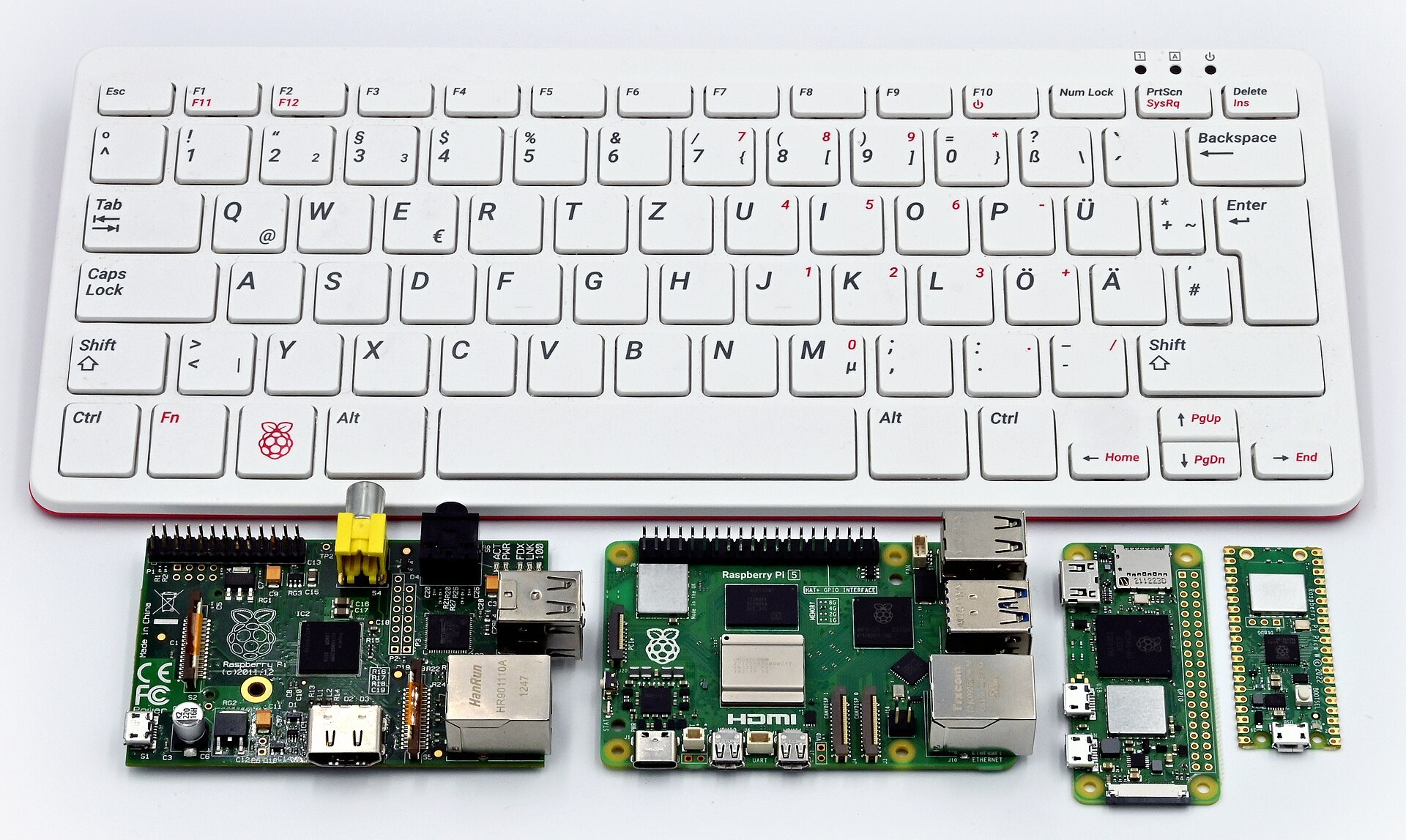
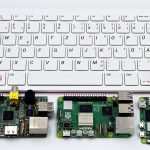
These three platforms are often compared, but they suit different stages and goals. The micro:bit is the best first step for most beginners because everything needed for a first program is already on the board and the editors run in a browser.
| BBC micro:bit V2 | Arduino Uno R3 | Raspberry Pi 5 | |
|---|---|---|---|
| Type | Microcontroller | Microcontroller | Full Linux computer |
| Main languages | Blocks, Python, JavaScript | C++ (Arduino) | Python and almost anything else |
| On-board sensors | Many | None | None |
| Logic voltage | 3.3 V | 5 V | 3.3 V |
| Wireless | Radio, Bluetooth LE | None | Wi-Fi, Bluetooth |
| Setup effort | Browser only | IDE install | OS install, keyboard, display |
| Best for | First coding and electronics | Learning electronics in depth | Projects that need an operating system |
Move on to an Arduino when you want to wire your own circuits from scratch and work with the enormous range of Arduino libraries and shields, and when you want ideas, our list of Arduino projects is a good place to start. Move on to a Raspberry Pi when your project needs a camera, a web server, a database or a full desktop, and our guide to Raspberry Pi projects covers the builds that show off what it can do. For Wi-Fi projects that report to the internet, an ESP32 board is the natural step up from a micro:bit.
You do not have to leave the micro:bit behind when you move on. Many makers keep one on the bench as a quick sensor tester, a radio remote control for larger projects, or a demonstration board for showing friends what code can do.
Common beginner mistakes
Most problems you will hit in the first week come from a short list of causes, and knowing them in advance saves a lot of frustration.
- Charge-only USB cables. If the MICROBIT drive never appears, try another cable first.
- Flashing a V2 program to a V1. Sound, microphone and logo code will show an error on V1 boards.
- Forgetting the radio group. Two boards on different groups never hear each other, and every board in a room on the same group hears everything.
- Using display-shared pins. P3, P4, P6, P7 and P10 behave strangely while the LED matrix is active.
- Powering motors from the 3V pin. This causes resets at best and can damage the board, so use a motor driver with its own supply.
- Mixing old and fresh batteries. Low voltage causes erratic behaviour, especially with the radio and speaker, long before the board stops working completely.
- Reading the temperature sensor as room temperature. It measures the processor, so expect readings a little above ambient.
FAQ
What is the BBC micro:bit?
The BBC micro:bit is a small programmable microcontroller board, about 4 cm by 5 cm, created by the BBC and its partners to teach coding and electronics. It has a 5×5 LED display, two buttons, motion and compass sensors, a radio and Bluetooth, and the V2 model adds a microphone, speaker and touch-sensitive logo. You program it in your browser using blocks, JavaScript or Python.
How much does a BBC micro:bit cost?
At the time of writing, the board alone typically sells for around £13 to £16 in the UK and around $18 to $22 in the US. The Go kit, with a USB cable, battery pack and batteries, costs a few pounds or dollars more and is the better first purchase. Prices vary by reseller, so compare authorised distributors before buying.
Is the micro:bit for kids?
The micro:bit was designed with school-age children in mind, roughly ages 8 to 14, and its editors and teaching materials reflect that. It is also a genuinely good tool for adults learning to code or exploring electronics, because the on-board sensors let you build working projects quickly before tackling wiring and circuit design.
Is there a free BBC micro:bit for schools?
In the UK, the BBC micro:bit: the next gen campaign gave free classroom sets to primary schools that registered in 2023, but that giveaway has closed. The Micro:bit Educational Foundation runs programmes with partners in different countries, so check its website for schemes currently open in your region. All the teaching materials, editors and training remain free for every school.
Do I need to install any software?
No installation is needed for MakeCode, the micro:bit Python Editor or CreateAI, which all run in a web browser. Use Chrome or Edge for direct WebUSB flashing. Offline versions and mobile apps exist for situations without reliable internet.
Can a micro:bit connect to Wi-Fi?
No, the micro:bit has no Wi-Fi hardware. It communicates through its own radio and Bluetooth Low Energy. If you need internet access, pair it with a Wi-Fi add-on board or choose an ESP32 or Raspberry Pi Pico W for that project.