By Rohan Easterbrook Fact-checked by Hugo Lindgren Published
A Makey Makey will register a touch through anything with a resistance below about 4.5 megaohms. That’s why a banana, a pencil line or another person can become your space bar. The board plugs into a computer over USB and shows up as an ordinary keyboard and mouse, so you need no coding and no drivers. This guide covers how it works, what it costs, which devices and apps it works with, what to build first, and when it makes sense to move up to an Arduino.
Key takeaways
- Makey Makey is a USB keyboard-and-mouse board that turns conductive objects into keys.
- You must touch Earth. The circuit closes through your body.
- The Classic kit costs $53.50 at SparkFun. Flinn Scientific lists it at $72.99.
- The board version matters: v1.4 or newer for iPad, and v1.2 or newer can only be remapped with the web tool.
- It works with anything that takes keyboard input, including Scratch, browser games and the official apps.
Fact-checked
We checked these key facts against the sources named, on November 23, 2026:
- No number means a pre-v1.2 board. The official remap tool supports both Classic and GO boards (source: instructables.com)
- The Museum of Modern Art added it to its permanent collection, with object records dated 2012 to 2014 (source: moma.org)
- The GO is about $20, and Invention Launchpad kits are $34.95, or $79.95 bundled with a Classic, on the official shop (source: makeymakey.com)
- Keep wet experiments, like bowls of water, away from the computer. The Makey Makey Classic costs $53.50 at SparkFun as of November 2026 (source: sparkfun.com)
- Arrow keys plus Space cover most browser games and Scratch projects. SparkFun’s Makey Makey Classic Hookup Guide describes the 12 back inputs (source: learn.sparkfun.com)
What is Makey Makey? (the 30-second answer)
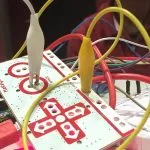
Makey Makey is a small circuit board from JoyLabz. Your computer sees it as a USB keyboard and mouse. You clip one wire to a conductive object, such as a banana. You hold the Earth wire. When you touch the banana, the board sends a keypress, for example the space bar. Any program that responds to that key now responds to the banana.
No software install is needed. Windows, macOS, ChromeOS and Linux already know how to talk to a keyboard. That’s what makes the board so popular in classrooms. A student can go from unboxing to a working fruit piano in a few minutes.
Makey Makey kit vs Makey Makey Classic: what the names mean
People say “Makey Makey kit” for the whole box and “Makey Makey Classic” for the standard full-size board. The current Classic kit, sold as SparkFun SKU KIT-14478, includes the Makey Makey HID Board V1.6, a mini-USB cable, a pack of alligator clips and a pack of jumper wires. JoyLabz also makes a smaller board (the GO), classroom bundles and themed kits. These are compared below.
Is Makey Makey a planet?
No. The name sounds like Makemake, a dwarf planet in the Kuiper Belt beyond Neptune, and the two often get mixed up in searches. Makey Makey is the invention kit. Makemake is the icy world. They have nothing to do with each other.
How Makey Makey actually works
Each input on the board watches for a very weak electrical connection to ground, which the board calls Earth. When you hold Earth and touch an object wired to an input, a tiny current flows through you and the object. The board notices the voltage change and sends the matching key to the computer.
Why you have to touch Earth
A switch needs a complete loop. On a Makey Makey, the loop runs from an input, through the clip, into the banana, through your body, into the Earth clip and back to the board. If you let go of Earth, the loop is open and nothing happens. Most “it’s broken” moments are really an ungrounded user.
The loop doesn’t have to be one person. If you hold Earth and a friend holds the clip wired to Space, a high five closes the circuit through both of you. That’s the classic high-five sound machine.
Maker tip
Clip the Earth wire to a strip of aluminium foil wrapped around your wrist like a bracelet. You stay grounded with both hands free, which makes pianos and game controllers much easier to play.
The 4.5 MΩ threshold, and what “conductive” means here
SparkFun’s Makey Makey guide explains that each input works as a voltage divider. A very large resistor inside the board holds the input at a high voltage. Your body and the object form a second resistor between the input and Earth. When that path is low enough in resistance, it drags the input voltage down and the board counts it as a press. SparkFun puts the limit at roughly 4.5 MΩ.
That’s why “conductive” means something much broader on a Makey Makey than in normal wiring. Fruit, Play-Doh, tap water, a thick pencil line and human skin are all poor conductors by electrician standards. They’re still far below 4.5 MΩ, so they work. Dry plastic, glass and dry paper sit far above it, so they don’t.
Worked example: a firm fingertip on a ripe banana might give a path of a few hundred kilohms to a couple of megaohms. That’s under the limit, so the key fires. A light touch on a dry pencil line with only a few strokes of graphite can climb past several megaohms and fail. Shading more graphite or pressing harder brings it back under the limit.
Did you know?
SparkFun’s Makey Makey guide says the inputs can detect a connection through materials up to about 4.5 megaohms. That’s enough to sense a touch through a person, a leaf or a pencil drawing.
It’s a USB HID device: why no software install is needed
USB HID (Human Interface Device) is the standard class that keyboards, mice and game controllers use. The Makey Makey identifies itself as an HID keyboard and mouse, so the operating system loads its built-in driver. The flip side is that the board can only send keys and mouse actions. It can’t read a temperature sensor or drive a motor.
Power check
Makey Makey runs only on USB power (5 V), and the current through your body is tiny and harmless. Never clip it to anything connected to a wall outlet, mains wiring or a charger. Keep wet experiments, like bowls of water, away from the computer.
What’s in the box and what it costs in 2026
The Makey Makey Classic costs $53.50 at SparkFun as of November 2026. Education suppliers usually charge more: Flinn Scientific lists the Classic Kit at $72.99. Smaller and themed kits start at about $20.
Makey Makey Classic contents (HID board V1.6)
SparkFun and Core Electronics list the same four items for the Classic:
- Makey Makey HID Board V1.6
- Mini-USB cable (mini, not micro; see the micro USB vs USB C notes if you need an adapter)
- Alligator clip pack
- Jumper wire pack, for the back headers
Ward’s Science sells a “Classic EDU” version that lists 6 connector wires, printed instructions with a visual project start guide, online documentation and 20 color stickers.
Makey Makey GO, STEM Pack and Invention Launchpads
| Model | Inputs | What’s included | Typical US price | Best for |
|---|---|---|---|---|
| Makey Makey Classic | 6 front inputs plus 12 on the back headers | V1.6 board, mini-USB cable, alligator clips, jumper wires | $53.50 (SparkFun), $72.99 (Flinn) | First kit, home and classroom |
| Makey Makey GO | 1 input | USB-stick board | $19.95 (official shop) | Pocket demos, one-button projects |
| Invention Launchpads (Retro Joystick, Keytar) | Uses a Classic | Templates and parts for one guided build | $34.95 kit only, $79.95 bundled with a Classic | Guided projects with a finished result |
| Makey Makey STEM Pack | Several Classic boards | Classroom set with lesson materials | Priced for schools; check current quotes | Teachers equipping a whole class |
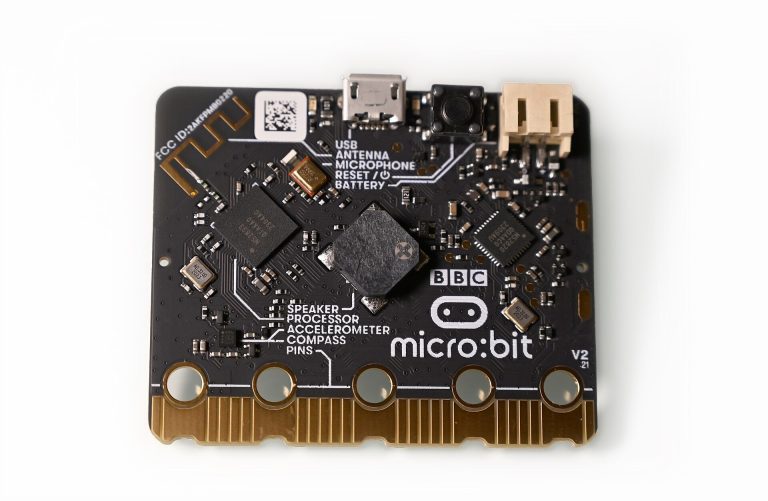
The GO launched on Kickstarter in May 2015 at $19, as Engadget and Make: reported at the time. The Invention Launchpads arrived in late 2025. The Retro Joystick turns everyday materials into an arcade-style controller, and the Keytar makes a playable keyboard guitar. JoyLabz also sells a Code-a-Key Backpack that pairs Makey Makey with a BBC micro:bit, a good next step if you’re already working through a bbc microbit project.
Buying on Amazon or eBay: check the board version
“Any idea on where to get one?” comes up often. New kits are easiest to find at SparkFun, the official Makey Makey shop and education suppliers. Used boards on eBay are cheaper, but check the version number before you pay. It’s printed on the back of the board under the Makey Makey name. If there’s no number, the board is older than v1.2. Makey Makey’s own guidance says v1.2 and older boards will likely not work with iPad adapters.
| Board version | Chip | How to remap | iPad adapter support |
|---|---|---|---|
| No number (early SparkFun boards) | ATmega32u4 | Arduino sketch, edit settings.h | Unlikely |
| v1.2 | PIC | Web remap tool only | Unlikely |
| v1.4 / v1.4b / v1.5 | PIC | Web remap tool only | Nearly all adapters work |
| v1.6 (current Classic) | PIC | Web remap tool only | Yes, with a suitable adapter or cable |
Maker tip
Before buying used, ask the seller for a photo of the back of the board. That one photo tells you whether it will work with an iPad and how it can be remapped.
Board tour: every input explained
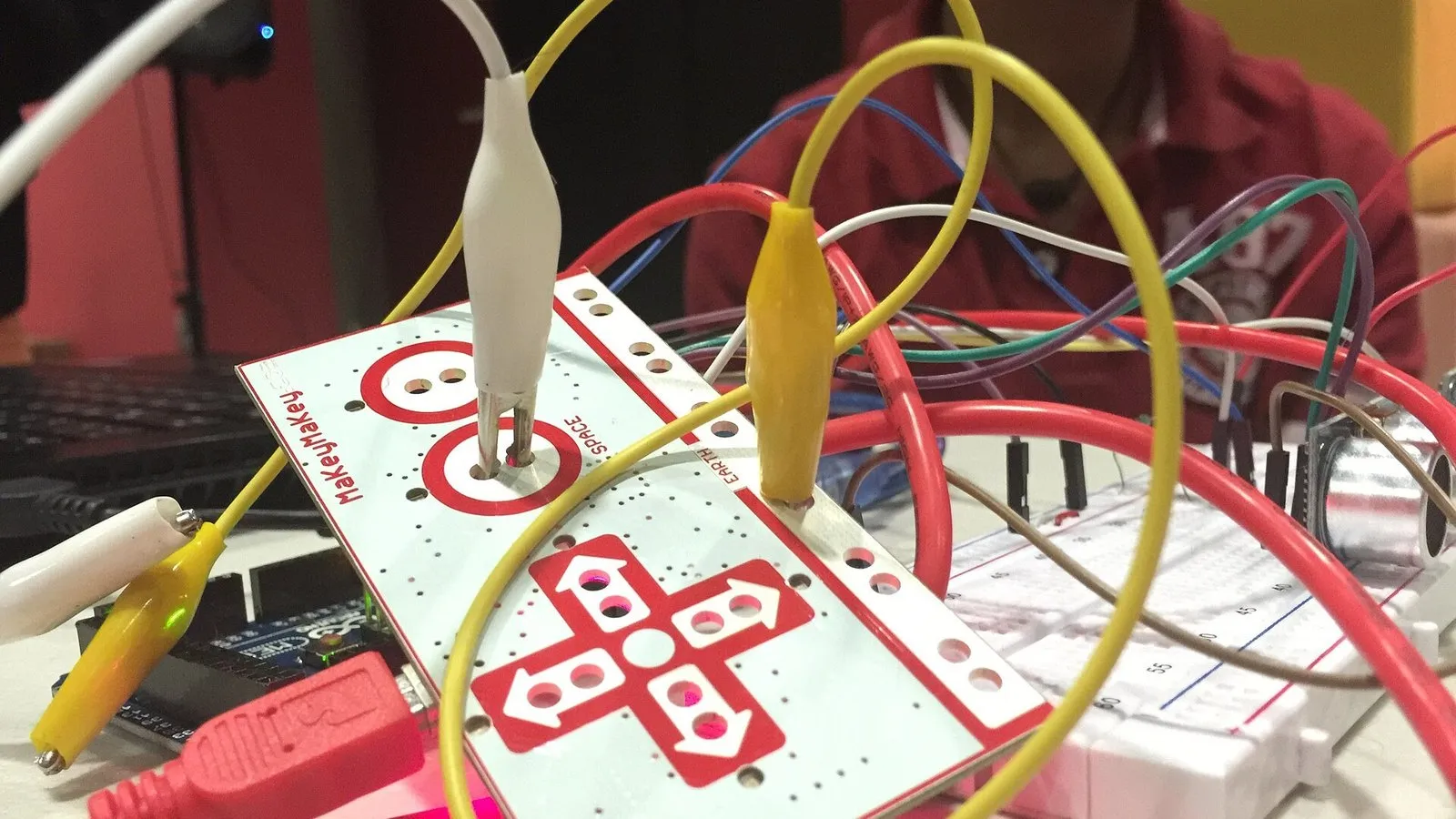
The front has six large inputs and an Earth strip. The back has two rows of female headers with 12 more inputs, plus extra ground and output pins. You reach the back pins with the jumper wires from the kit.
| Location | Pad or pin | Default output |
|---|---|---|
| Front, left (arrow cross) | Up, Down, Left, Right | Arrow keys |
| Front, right | Space | Space bar |
| Front, right | Click | Left mouse click |
| Front, bottom edge | Earth strip | Ground (you touch this) |
| Back, left header | W, A, S, D, F, G | Those letter keys |
| Back, right header | Mouse up, down, left, right, left click, right click | Mouse movement and clicks |
| Back, bottom header | Six Earth pins | Extra ground connections |
| Back, top header | Expansion/output pins | Advanced use |
Front inputs
The front pads take alligator clips. Clip with the jaws over the hole so the metal teeth grip the board. Arrow keys plus Space cover most browser games and Scratch projects.
Back headers and jumper wires
SparkFun’s Makey Makey Classic Hookup Guide describes the 12 back inputs. W, A, S, D, F and G sit on the left header, and mouse movement and clicks sit on the right. Push a jumper wire into the header, then clip an alligator clip to the wire’s other end. Six keys plus WASD gaming layouts open up a lot of projects, such as a full-hand piano or a dance mat.
Earth/ground connections
All Earth points are connected to each other. You can use the front strip for your own ground clip and the bottom header pins for a second player. When two people share one board, each should have their own Earth wire.
Your first build: the banana piano in 5 minutes
The banana piano needs only the Classic kit, a few bananas and a browser. Each step below tells you what you should see before you move on.
Build steps
- Plug the mini-USB cable into the board and the computer. The board’s LED lights and the computer recognises a keyboard. No pop-ups are needed.
- Clip one alligator clip to the Earth strip. Hold the other end’s metal jaws in your hand.
- Clip one end of a second wire to Up. Push the other jaw into a banana.
- Repeat for Down, Left, Right and Space, one banana each.
- Open the official Makey Makey piano app or any Scratch piano project in your browser.
- Hold Earth and tap a banana. A note plays and the input’s LED blinks.
Step-by-step setup checks
If a note doesn’t play, open a plain text editor and tap the Space banana. A space appearing on screen proves the hardware works, and the problem is in the app. Nothing appearing means a clip or Earth problem.
Swap bananas for Play-Doh, foil or pencil graphite
Once bananas work, swap materials. Play-Doh lets you shape keys. Foil makes flat, reliable pads. A soft pencil drawing makes paper keys, as long as you shade heavily and leave clear paper between each key.
Maker tip
For pencil keys, use a 6B or softer graphite pencil, shade solid patches and press firmly when you play. Leave a gap of at least a finger’s width between drawn keys so they don’t short together.
Is it conductive? A household object chart
Anything with a path under about 4.5 MΩ works. Moist, salty or metallic things pass easily. Dry, insulating things fail. The chart below follows from that threshold and the materials JoyLabz and SparkFun use in their own projects.
| Object | Works? | Notes and tips |
|---|---|---|
| Banana, apple, citrus | Yes | Moist flesh conducts well. Push the clip into the skin. |
| Play-Doh or salt dough | Yes | Salt helps. Keep blobs from touching each other. |
| Tap water in a bowl | Yes | Clip to the bowl’s edge with the jaws in the water. Touch the water to trigger. |
| Aluminium foil | Yes | The most reliable flat key. Tape it to cardboard. |
| Coins, spoons, keys | Yes | Bare metal conducts. Paint or lacquer may block it. |
| Soft graphite pencil drawing | Sometimes | Heavy shading with 6B or softer. Light lines fail. |
| People | Yes | The basis of high-five and hand-holding circuits. |
| Plants and leaves | Sometimes | Fresh, moist leaves work. Dry ones don’t. |
| Damp sponge or paper towel | Sometimes | Works while damp, stops when dry. |
| Plastic, rubber, glass | No | Insulators, far above the threshold. |
| Dry wood, cardboard, paper | No | Too dry. Cover with foil to make a key. |
| Cloth (dry) | No | Use conductive thread or foil patches instead. |
| Ballpoint or marker ink | No | Ordinary ink isn’t conductive. Use graphite. |
Things that work great
Foil, fruit, Play-Doh and water are the four reliable materials for classrooms. They trigger with a light touch, cost almost nothing and are safe for young kids. Metal objects work too, but bare skin on bare metal can feel jumpy because it triggers so easily.
Things that never work and why
Plastic, glass, rubber and dry paper have resistances of gigaohms or more, far beyond what the board can sense. You can turn any of them into a key by covering the touch area with foil. If you’re unsure about a material, a multimeter on its resistance range gives a quick reading. The beeping continuity mode only reacts to very low resistance, so it will wrongly say “no” for fruit and graphite. The guide to multimeter continuity testing explains the difference.
Maker tip
If a dry finger or a dry object won’t trigger, dampen it slightly. A little moisture lowers the resistance enough to get under the threshold.
Using Makey Makey with Scratch and apps
Makey Makey works with any software that responds to keyboard or mouse input. The three main choices are Scratch, the official browser apps and ordinary keyboard-controlled games.
Scratch: the “when key pressed” method
Can you use the normal “key pressed” blocks with Makey Makey? Yes. Scratch’s standard “when space key pressed” event block works because the board sends real keypresses. Scratch 3 also offers a Makey Makey extension. Its “when key pressed” hat block lists only the keys the board sends by default, and a second block triggers when keys are pressed in a set order, such as a secret code. Both approaches work. The extension mainly saves beginners from searching through every key.
A good first project is to code a simple game in Scratch and then build its controller. A one-button game, like the one in the guide to making Flappy Bird in Scratch, maps neatly onto a single foil “flap” pad wired to Space.
Official Makey Makey apps
The official Plug and Play apps run in the browser, with nothing to install. The lineup includes a piano, a Buzzer App for game-show buzzers and an Audio Sampler that lets you record sounds and trigger them from your keys. Because they’re browser apps, they also work on Chromebooks and iPads. Makey Makey suggests trying an app on your device before you buy an adapter.
Games and any keyboard-controlled software
Browser games played with the arrow keys, Space or WASD all work, and so do presentation software, music programs and emulators. If a program accepts keyboard shortcuts, a Makey Makey can trigger them.
Device compatibility: Windows, Mac, Chromebook, iPad, Raspberry Pi
Makey Makey works on Windows, Mac, Chromebook and many Linux distributions with no setup. iPads work only with a newer board and the right adapter.
| Device / OS | Works? | Caveats | Best software |
|---|---|---|---|
| Windows | Yes | Some users report key glitches in Chrome; test another browser | Scratch, official apps |
| macOS | Yes | None for normal use | Scratch, official apps |
| ChromeOS (Chromebook) | Yes, rated excellent | Full HID support | Chrome, Scratch, offline Scratch app |
| iPad (iPadOS) | Limited but possible | Board v1.4b or newer; adapter or USB-C cable; many apps ignore keys | Safari or Chrome with Scratch or official apps |
| Linux / Raspberry Pi OS | Yes | Use a full desktop OS | Scratch 3 desktop, browser |
Chromebooks in classrooms
Makey Makey’s mobile guide rates ChromeOS compatibility as excellent. Chrome and Scratch both work well, and the Scratch app for ChromeOS works offline, which helps on school networks.
iPad and adapters
“Will my old Makey Makey work with an iPad adapter?” Probably not if it’s v1.2 or older. Makey Makey says nearly all adapters it tested work with v1.4 and v1.5 boards, and its mobile guide gives v1.4b and higher as the safe range. The company names Apple’s Lightning to USB Camera Adapter as one that works out of the box. For USB-C iPads it sells its own USB-C cable. Use browser-based tools on the iPad. For Scratch, the company recommends remapping the arrow keys to letters or numbers.
Raspberry Pi and Linux
On a Raspberry Pi running Raspberry Pi OS with the desktop, the board appears as a keyboard. The Scratch 3 desktop app gives you the full project workflow on a computer that costs less than many tablets. That makes a Pi and a Makey Makey a cheap, self-contained classroom station.
Remapping keys (and why your board version matters)
You can change which key each input sends. How you do it depends on the board version. Makey Makey’s web remap tool supports every v1.2-or-newer board, including today’s v1.6 Classic. Only the earliest SparkFun boards can be reprogrammed with Arduino.
Find your board version
Turn the board over and look under the printed Makey Makey name. A number like v1.6 tells you the version. No number means a pre-v1.2 board.
Using the official remap tool
The official remap tool supports both Classic and GO boards. Open it in a desktop browser, choose the new key or mouse action for each input, and follow the on-screen steps exactly to send the new map to the board. “Can’t remap Makey Makey v1.6” posts usually come from people trying to use Arduino, or from skipping a step in the tool. The web tool is the only route for these boards.
Legacy Arduino firmware on early boards
“Uploading new firmware to a Makey Makey v1.2 with Arduino doesn’t work.” That’s expected. SparkFun community answers explain that v1.2 and later boards use a PIC chip, so Arduino firmware can’t be loaded. The original SparkFun-logo boards used an ATmega32u4, and the SparkFun Advanced Guide shows how to remap them by editing settings.h in the Arduino sketch. On those boards, back-header pins A0 to A5 handle mouse movement and clicks.
12 project ideas from beginner to maker
These ideas are sorted by difficulty. The first few need only the kit and a browser. The last ones involve building something physical or customising keys.
For kids and classrooms
- Banana piano. Five fruits, the piano app, five minutes.
- High-five sound circuit. One person holds Earth, the other holds Space, and a high five plays a sound in Scratch.
- Pencil-drawn game controller. Draw arrow pads and a jump button in graphite on paper, then play a browser game.
- Play-Doh sculpture that talks. Each part of a clay animal triggers a different recorded sound in the Audio Sampler.
- Interactive poster. Foil dots behind a science poster read out facts when touched.
- Game-show buzzers. Foil pads plus the official Buzzer App for classroom quizzes.
For makers who want a challenge
- Retro Joystick arcade controller. Build it from the Invention Launchpad kit or from cardboard and foil, using the WASD back pins.
- Keytar. A playable guitar-shaped keyboard, from the Launchpad or your own design.
- Controller mod. Put foil pads on a cardboard replica of a classic NES-style pad, or build a Minecraft controller with WASD on the back header.
- Pet-bowl alarm. A foil pad under a food bowl, with a Scratch sound when a pet’s nose closes the circuit through a wet bowl. Expect it to need tuning.
- Floor dance mat. Large foil squares on cardboard. Wear the foil Earth bracelet so your feet only need to touch the squares.
Accessibility switches
- Custom assistive switch. A Makey Makey can turn a large foil pad, a squeeze of a damp sponge or a touch on any comfortable surface into a keypress or click. After remapping, that single input can drive software controlled by one key. It costs a fraction of many commercial adaptive switches, but treat it as a prototype. Wires and clips need securing before daily use.
Troubleshooting: Makey Makey not working?
Almost every failure is a broken loop: the user isn’t grounded, a clip has slipped, or the object’s resistance is too high. Work through this list in order.
- Check the board LED. No light means a cable or USB port problem. Try another port and cable.
- Hold Earth. Grip the metal jaws of the Earth clip, not the plastic cover.
- Reseat the clips. The jaws must bite over the input hole on the board.
- Test in a text editor. If spaces and arrows appear, the hardware is fine.
- “Green light is on but keys don’t work in Scratch.” Click once on the Scratch stage so the page has keyboard focus. Then check that the block’s key matches the input you’re touching.
- Chrome on Windows glitches. If keys work in a text editor but drop out or repeat in Chrome, try another browser or the Scratch desktop app.
- Dry hands or dry objects. Dampen slightly, press harder or increase the contact area.
- Keys firing on their own. Two objects or clips are touching, or a wet table is linking them. Separate everything.
- Remapped board sending odd keys. Reopen the remap tool and reset to the defaults.
Makey Makey vs Arduino, ESP32 and Raspberry Pi: when to graduate
Makey Makey is the fastest way to turn objects into keys, but it can only send keyboard and mouse input. When you want logic, sensors or outputs like lights and motors, it’s time for a programmable board.
What Makey Makey does better
Nothing else gets a beginner from box to working invention as quickly. It needs no code, no soldering and no drivers, and its high-resistance inputs are already tuned for fruit and people. In a classroom of 30 students, that reliability matters more than flexibility.
The honest counter-argument is that you outgrow it. It can’t light an LED, drive the motors and servos a robot needs, run without a computer, or decide anything for itself. All the logic lives in Scratch or whatever app is running.
Your next board
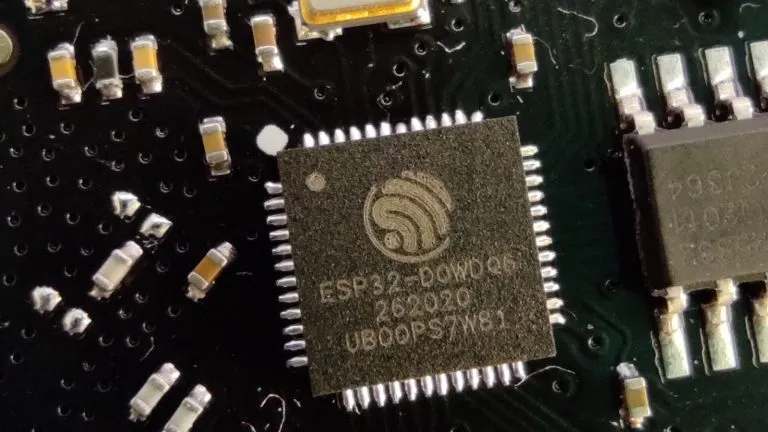
“Can I make a Makey Makey with a Raspberry Pi or Arduino?” Yes. The closest match is an Arduino Leonardo or a SparkFun Pro Micro. Both use the ATmega32u4 chip, which can act as a USB HID keyboard, just like the earliest Makey Makeys. ESP32 boards have built-in capacitive touch pins. The original ESP32 has ten, but it lacks native USB, so as a keyboard it works over Bluetooth instead. The ESP32-S2 and ESP32-S3 add native USB. A Raspberry Pi can read switches on its GPIO pins, which are 3.3 V only, and can run Scratch itself.
| Option | Touch method | Acts as USB keyboard? | Coding needed | Difficulty |
|---|---|---|---|---|
| Makey Makey Classic | High-resistance inputs | Yes, built in | None | Beginner |
| Arduino Leonardo / Pro Micro | External high-value pull-up | Yes (Keyboard library) | Arduino C++ | Intermediate |
| ESP32-S3 | Capacitive touch pins | Yes (native USB) | Arduino C++ or MicroPython | Intermediate |
| Raspberry Pi | GPIO switches, 3.3 V | Is the computer itself | Python or Scratch | Intermediate |
Here’s a one-key Makey Makey clone on an Arduino Leonardo. A 10 MΩ resistor pulls pin D2 up to 5 V. When you hold GND and touch the banana, your body pulls the pin low.
| From | To | Purpose |
|---|---|---|
| Leonardo 5V | 10 MΩ resistor, end 1 | Pull-up supply |
| 10 MΩ resistor, end 2 | Leonardo D2 | Holds the input high |
| Leonardo D2 | Alligator clip to banana | The touch key |
| Leonardo GND | Alligator clip you hold | Your Earth connection |
\#include <Keyboard.h>

const uint8_t TOUCH_PIN = 2;   // D2, with a 10 Mohm pull-up to 5 V
const uint8_t SAMPLES = 20;
bool pressed = false;

void setup() {
  pinMode(TOUCH_PIN, INPUT);   // no internal pull-up: the external resistor does the work
  Keyboard.begin();
}

void loop() {
  uint8_t lowCount = 0;
  for (uint8_t i = 0; i < SAMPLES; i++) {
    if (digitalRead(TOUCH_PIN) == LOW) lowCount++;
    delayMicroseconds(500);
  }
  bool touching = lowCount > (SAMPLES * 3) / 4;   // majority vote filters out noise if (touching && !pressed) {
    Keyboard.press(' ');
    pressed = true;
  } else if (!touching && pressed) {
    Keyboard.release(' ');
    pressed = false;
  }
  delay(5);
}
With 5 V across 10 MΩ, at most 0.5 µA flows through you. The sampling loop is there because a high-impedance pin picks up electrical noise from the room. That filtering is part of what the Makey Makey does for you without you seeing it. Building this teaches more electronics. Buying the Makey Makey gets you 18 inputs that already work.
Who made Makey Makey? A short history
Makey Makey was created by Jay Silver and Eric Rosenbaum while they were PhD students in the MIT Media Lab’s Lifelong Kindergarten group, the same group behind Scratch. They had already built playful inventions like Drawdio, a pencil that makes sound as you draw, and Singing Fingers. Early workshops, including some at the Exploratorium in San Francisco, shaped the board’s design.
The Kickstarter campaign “MaKey MaKey: An Invention Kit for Everyone” ran from May 14 to June 12, 2012. It asked for $35,000. Makey Makey says it was funded in just over 24 hours and won a Best of Kickstarter award that year. Silver and Rosenbaum sold it through their company, JoyLabz, with SparkFun making the early boards. The kit became a regular at Maker Faire. The Museum of Modern Art added it to its permanent collection, with object records dated 2012 to 2014. The Makey Makey GO followed in 2015, and the Invention Launchpads in 2025.
Did you know?
The 2012 Kickstarter ended with $568,106 pledged by 11,124 backers, more than 22 times its $25,000 goal.
FAQ
What is a Makey Makey kit?
It’s a box with a USB circuit board, a mini-USB cable, alligator clips and jumper wires. The board acts as a keyboard and mouse, so conductive objects like fruit, foil or Play-Doh become keys when you touch them while holding Earth.
Is Makey Makey a planet?
No. The dwarf planet in the Kuiper Belt is Makemake. Makey Makey is an invention kit made by JoyLabz.
Who made Makey Makey?
Jay Silver and Eric Rosenbaum created it in the MIT Media Lab’s Lifelong Kindergarten group. It launched on Kickstarter in 2012 and is sold by their company, JoyLabz.
What is conductive Makey Makey?
It means a material the board can sense. Anything with a resistance below about 4.5 MΩ works, including fruit, water, foil, graphite and people. Plastic, glass and dry paper don’t.
How does Makey Makey work?
Each input is held at a high voltage through a huge resistor. Touching an object while holding Earth creates a path through your body that pulls the voltage down, and the board sends the matching keypress over USB.
How much does a Makey Makey cost?
The Classic is $53.50 at SparkFun and $72.99 at Flinn Scientific. The GO is about $20, and Invention Launchpad kits are $34.95, or $79.95 bundled with a Classic, on the official shop.
What age is Makey Makey for?
There’s no hard minimum. Young children can play a banana piano with an adult setting it up. Children who can use Scratch can build their own inventions, and teens and adults use it for quick interactive prototypes.
Does Makey Makey work with Chromebooks and iPads?
Chromebooks work fully, and Makey Makey rates ChromeOS as excellent. iPads need a v1.4b-or-newer board plus a Lightning camera adapter or a USB-C cable, and work best with browser-based apps.
Do you need to code to use Makey Makey?
No. It works with any keyboard-controlled program right away. Coding in Scratch is optional, and it’s where most of the creative projects happen.
Can I remap Makey Makey keys?
Yes. Use the official web remap tool for Classic and GO boards from v1.2 onward. Only the early ATmega32u4 SparkFun boards can be reprogrammed through Arduino.
Why do I have to hold the Earth wire?
Your body completes the circuit between the object and the board’s ground. Without that connection the loop stays open and no key is sent.
A good first move is to check the version printed on your board, then build the banana piano and test each key in a text editor. Once every input fires reliably, take a Scratch game you’ve already built and give it a controller you made yourself.
Notes on this article
- Fact-checked by Hugo Lindgren against the sources listed below before publication.
- Published
Fact-checking
- Researched from 8 sources, listed below.
- Every claim is checked by Hugo Lindgren; anything we cannot confirm is corrected, labelled or removed.
Sources (8)
- Makey Makey Classic by JoyLabz – SparkFun (sparkfun.com)
- Makey Makey Classic by JoyLabz (KIT-14478) – SparkFun (sparkfun.com)
- Makey Makey Classic by JoyLabz – Core Electronics (core-electronics.com.au)
- Makey Makey Classic Kit – Flinn Scientific (flinnsci.com)
- Makey Makey Classic EDU – Ward's Science (wardsci.com)
- MaKey MaKey Quickstart Guide – SparkFun Learn (learn.sparkfun.com)
- Makey Makey Classic Hookup Guide – SparkFun Learn (learn.sparkfun.com)
- MaKey MaKey Advanced Guide – SparkFun (sparkfun.com)